When I first noticed the Grid option in my iPhone camera settings, I didn’t pay much attention to it. Like a lot of iPhone features, it was just there in the background and I assumed it wasn’t something I’d ever use.
As it turns out, I was wrong.
In this third tip in my “How to Take Better Photos with Your iPhone” series, we’re looking at the iPhone Grid—a simple camera setting that can help you frame photos and line things up more easily.
👈If you missed Tip #2: iPhone Photo Tip #2: Great Low-Light Photos
Skeptical About the Grid?
I’ll admit it—the first time I saw the Grid turned on, I thought it looked busy.
I couldn’t imagine wanting a bunch of lines across my camera screen. It just didn’t seem like something that would help.
But after learning what the Grid was actually for, I decided to leave it on for a while and see what happened.
The Grid is just a set of guide lines that appears while you’re taking a photo. They don’t show up in the final picture, but they’re there to help you line things up as you shoot—kind of like a quick visual reference so things don’t end up slightly tilted or off-centre without you noticing.
It exists because when you’re holding your phone up, it’s actually really easy for things to look straight on the screen but end up slightly crooked in the photo. The Grid gives you something simple to line up against so you don’t have to guess.
What surprised me most was how quickly I stopped noticing the lines. They’re there when I need them, but they don’t feel intrusive the way I expected.

Let’s Turn on the Grid
Turning on the Grid is easy.
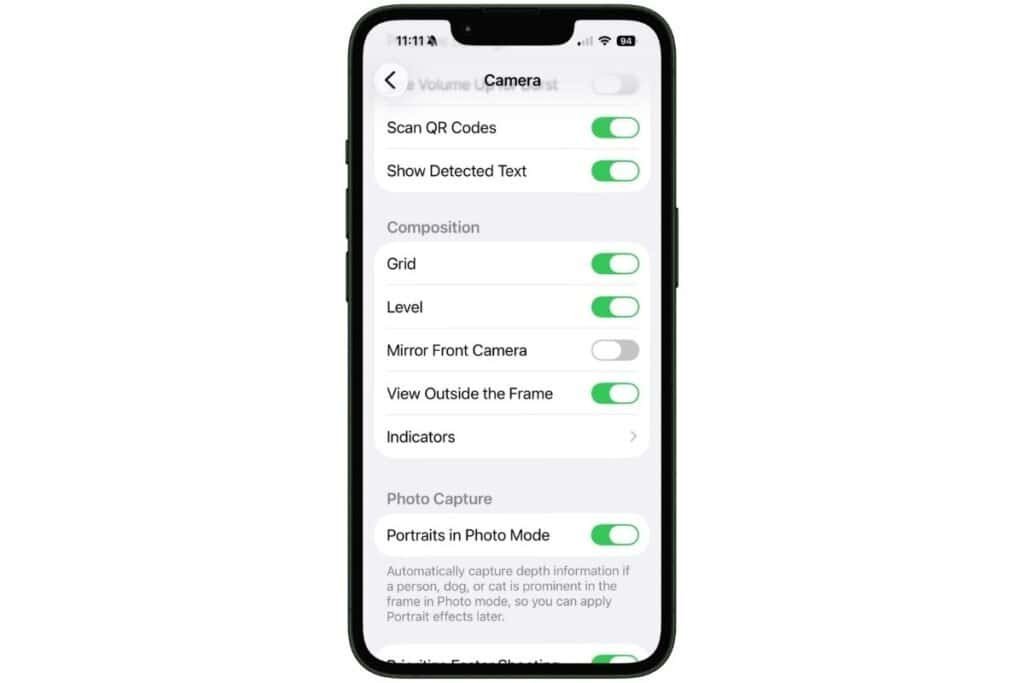
Go to Settings, scroll down to Camera, and switch on Grid. Once it’s enabled, you’ll see the lines appear whenever you open the Camera app.
That’s really all there is to it. There’s nothing complicated about it.
Once it was turned on, I just started using the camera like I normally would — and that’s where things got interesting.
It’s Really Not Distracting
This was the part that surprised me the most.
I fully expected the Grid to be something I’d turn off again after a few minutes. I thought I’d notice it every time I opened the camera and find it annoying or visually distracting.
But that didn’t really happen.
After a while, I stopped paying attention to it. It’s just there in the background when I open the camera, and most of the time I don’t even think about it.
What I’ve realized is that it doesn’t actually get in the way of taking photos. It just sits there quietly, and every so often I’ll notice it when something in the frame doesn’t look quite right. And in those moments, it’s useful in a way I didn’t expect.

When the Grid Comes in Handy
As I had mentioned, most of the time I don’t really think about the Grid when I open the camera. But there are moments when it actually becomes useful in a very simple way—it helps me quickly see if something in the frame feels a bit off before I move on.
With Willow, this is probably where I notice it the most. I’ll take a photo quickly, and sometimes something about it just doesn’t look quite right when I glance at the screen. She might feel a little too centred, or the shot might feel slightly uneven without me being able to explain exactly why.
That’s where the Grid is handy. It gives me a quick visual reference so I can adjust things on the spot instead of guessing. Sometimes that means taking a second photo with a small adjustment, and sometimes it just confirms the first one was fine.
I should probably mention that I don’t consider myself a photographer. I’m just an iPhone enthusiast who enjoys finding simple ways to help my iPhone take better pictures. That’s why I like the Grid. It doesn’t require any special skills or photography knowledge to be useful.
I’ve also found it helpful when I’m taking photos while travelling. Whether it’s a building, a waterfront view, or a quick group photo, the Grid can help me spot when something looks a little crooked or when my subject might look better slightly off to one side.
It doesn’t mean every photo has to be perfectly lined up. That’s not the point. The Grid is simply there as a guide when you want a quick second opinion from your camera screen.
It doesn’t take any effort to use, and that’s really what makes it useful. It’s just there when I need a quick second look at what I’m about to capture.

Try It for Yourself
Want to see the difference the Grid can make?
Try this simple photo experiment.
Pick something around your home—a coffee mug, a plant, or even your dog if they’ll sit still long enough.
First, take a photo with the subject right in the middle of the frame.
Then take a second photo of the same subject, but this time use the Grid as a guide and move the subject slightly off to one side.
Now compare the two photos.
You may find that one feels a little more balanced or interesting, even though you didn’t change much at all. That’s one of the reasons many people like having the Grid turned on.
And if you don’t notice much difference? That’s okay too.
The Grid isn’t a magic tool, and it won’t improve every photo. But it’s a simple feature that’s worth experimenting with—and you might be surprised by how often you start using it once you know it’s there.

What’s Next?
The Grid can help you frame a better photo, but sometimes the problem isn’t the framing—it’s that your iPhone focuses on the wrong thing or makes the picture brighter or darker than you expected.
In the next tip, I’ll show you a simple trick that lets you lock the focus and brightness before you take the photo.
👉What’s next? iPhone Photo Tip #4: Lock Focus and Brightness for Better Photos
👈If you missed Tip #2: iPhone Photo Tip #2: Great Low-Light Photos
👈Want to start at the beginning, iPhone Photo Tip #1: Natural Light for Brighter, Better Shots
If you’re planning on practicing your photo skills while on vacation, you might also like my iPhone Tips for Travel—it’s packed with easy ways to get your phone ready for the road and capture great memories while you’re away.

Gail Kerr
IT Professional and Technical WriterTechnology has been part of my life for as long as I can remember. With over 28 years of experience providing computer support in both large corporations and small businesses, I’ve seen just about everything. In 2009, I went back to school to earn an Associate Certificate in Technical Writing—combining my love of tech with a passion for clear, easy-to-understand communication. Now, I help people of all levels feel more confident with their devices. I’ve also become the go-to person for friends and family whenever a tech question or challenge comes up.