
I don’t know about you, but the Messages app is probably one of the most used apps on my iPhone. I’m in it all the time.
But until recently, I hadn’t really taken advantage of all the ways to customize it. Everything looked the same, and conversations could easily blend together. And when that happens, it’s easy to mix things up—or even send a message to the wrong person now and then.
So if you haven’t customized your Messages app, this might be something you want to try. There are a few simple ways to make it feel more personal—and easier to recognize who you’re talking to at a glance.
Add Photos to Your Contacts
If you haven’t already done this, adding photos to your contacts is one of the easiest ways to keep track of who you’re messaging at a glance.
I’ve noticed this even more with the newer look in iOS 26. Messages feels a lot more visual now, and the contact photo stands out more in your conversations—so it actually helps you recognize people quicker without having to stop and think.
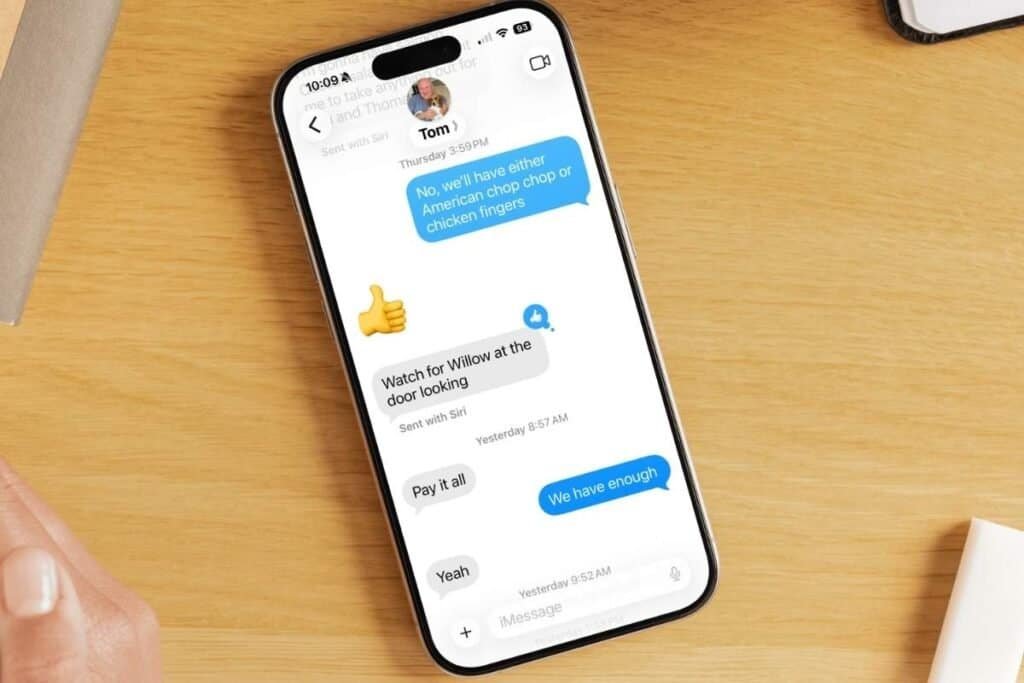
You don’t even have to go into your Contacts app to do this. You can add a photo right from a conversation:
- Open a conversation in Messages
- Tap the name at the top
- Tap Info
- Tap Edit Contact Info
- Tab Edit
- Choose to add one of the following: Photo, Memoji, Monogram, Emoji.
- Follow the prompts.
- Tap ✔️
Note: Depending on your iPhone, these steps might look a little different, but the idea is the same—you’re just editing the contact and adding a photo.
The next time that person messages you, you’ll see their photo right away—and it makes your Messages feel a lot more personal and easier to scan.
You may have even seen your iPhone suggest updating someone’s contact photo when they message you. That’s because they’ve set one up and shared it—and it’s something you can do too.
Set & Share Your Own Contact Photo
If you’ve seen that prompt to update someone’s contact photo, this is what’s behind it.
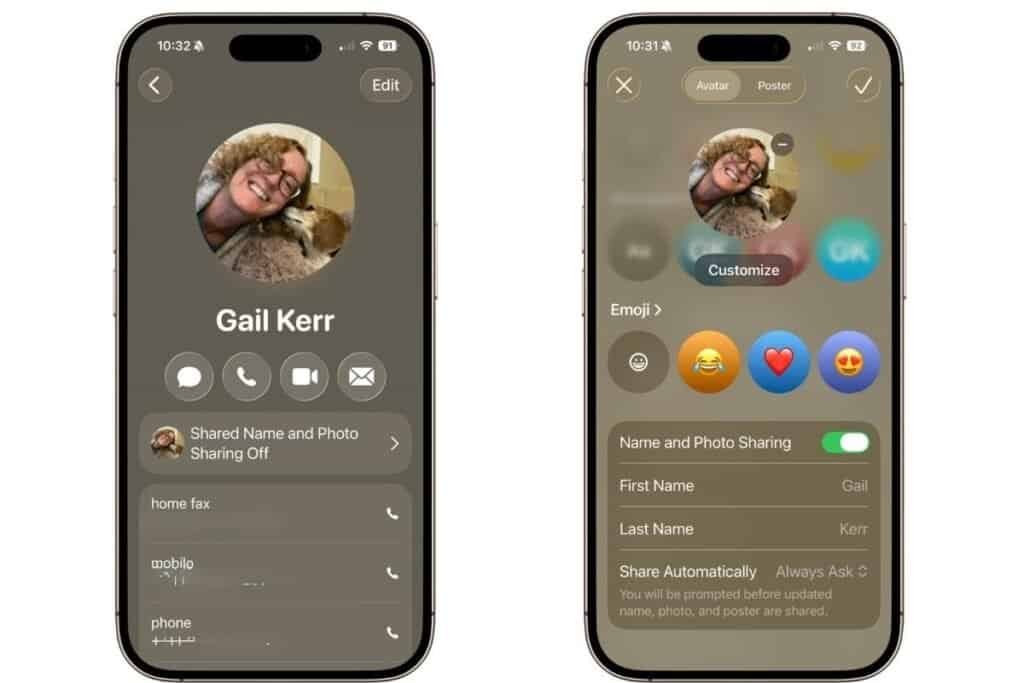
Your iPhone lets you share the photo that shows up when you message or call someone. And honestly, that can be nice—because we don’t always love the photos other people might have for us.
This way, you’re in control of what people see. It can be a photo you like… or not even a photo at all. You can use an emoji, your initials, or something simple that feels more like you.
Here’s how to set it up:
- Open the Contacts app (or the Phone app and tap Contacts)
- Tap your name at the top (My Card)
- Tap Shared Name and Photo
- Choose a photo, emoji, or initials
- Scroll to the bottom and turn on Name and Photo Sharing
- Choose who you want to share it with (Contacts Only or Always Ask)
- Tap ✔️
Once it’s set, that’s the photo people will be prompted to use when you message or call them. Although, they can choose to use it or keep the photo they already have for you.
Now that you’ve set how others see you, you can also change how your conversations look on your screen.
Change the Look of Your Conversations
Another way to make Messages feel a bit more personal is by changing the look of your conversations using backgrounds. Apple introduced backgrounds with iOS 26.
Depending on your iPhone and settings, this doesn’t always stay just on your device. If you both are using iOS26 , the background will also appear for the other person in the conversation—so it actually changes how the chat looks for both people.
I noticed this when I tried it with my husband. I chose a photo that had meaning for both of us, and when it updated, he saw it too. He actually liked it because it was something familiar and personal to both of us. If his phone was on an older iOS version, he wouldn’t have seen the change.
What I like about this is that it doesn’t change how Messages works. It just adds a bit of personality to the conversation, whether that’s something simple like a color or something more meaningful like a shared photo. And when there’s a personal background I’m never in the wrong thread! LOL

Here’s how you can do it:
- Open a conversation in Messages
- Tap the name at the top
- Tap Backgrounds
- Choose a colour, photo, or style you like
- Tap ✔️
Either way, it’s a simple way to make your messages feel a little more personal—and easier to recognize at a glance.
Once you start making your conversations easier to recognize, the next simple step is making sure the people you talk to most are easy to get back to.
Pinned Conversations
Another simple thing that helps is pinning the people you message most.
This just keeps certain conversations at the top of your Messages list, so you don’t have to scroll to find them every time. It’s especially helpful for family or anyone you talk to regularly.
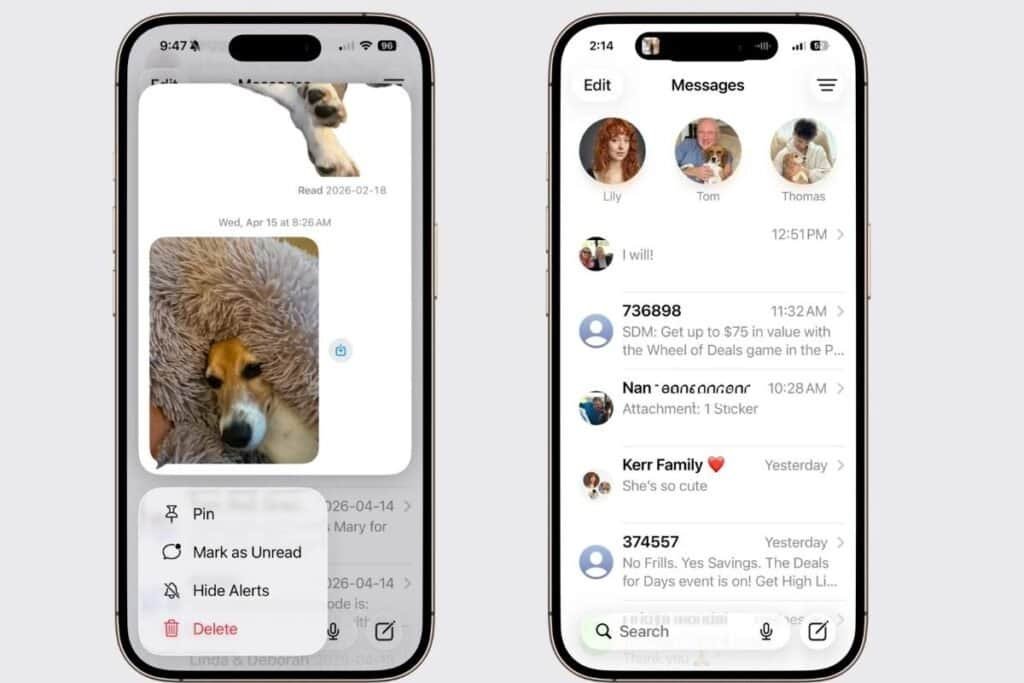
To pin a conversation:
- Open Messages
- Press and hold the conversation
- Tap Pin
The conversation will stay right at the top for easy access.
You can pin up to nine conversations, so you’ve got a bit of flexibility to keep your most important chats handy without cluttering anything.
It’s a small change, but it makes it a lot quicker to get back to the people you talk to most.
And while you’re making it easier to find conversations, Apple has also made another small but helpful change—moving the search bar to the bottom in Messages in iOS 26. It actually makes searching for chats a bit quicker once you get used to it. If you’re curious about that change, check out my post about why it makes sense.
👉 iOS 26 Moved the Search Bar — and It Actually Makes Sense
And once you’ve got your conversations organized a bit better, you can also add a little more fun to your messages using reactions and stickers.
Reactions & Stickers
Now that everything is a bit easier to find, you can also add a little more fun to your messages with reactions and stickers.
Reactions are the quick ones—you just press and hold a message and tap an emoji. It’s an easy way to respond without typing anything, and it keeps conversations moving.
What’s nice now is that you’re not limited to the standard few options. You can scroll through and choose different emojis as reactions, which makes it a bit more personal depending on how you want to respond in the moment.
But stickers are where things get a bit more playful.
You can use them in a few different ways. For example:
- Send a sticker instead of typing a quick reply
- React to a message with something more expressive than text
- Or place a sticker right on top of a photo in a conversation
And one of the more fun options is creating stickers from your own photos.
So if you take a picture of your dog, a favorite memory, or even something funny, you can turn it into a sticker and use it in your messages later. It’s a small touch, but it can make conversations feel more personal—and sometimes even a bit funnier.
Here’s how simple it is:
- Press ➕ next to the iMessage box.
- Tap Stickers
- Press ➕
- Choose the photo
- Press ➕ to add the sticker
That’s really all there is to it.
It’s not something you have to use—but once you start, it can make everyday conversations feel a little more fun and personal.
Bringing It All Together
Messages is something most of us use every single day, so it’s easy to forget you can actually make it feel a bit more personal.
But as you’ve seen, it doesn’t take much. A contact photo, a background, pinning a few conversations, or even just adding a bit of personality with reactions and stickers—these are all small changes, but together they can make a big difference in how your Messages app feels to use.
And the nice part is, you don’t have to do everything at once. Even trying just one of these can make your conversations a little easier to recognize—and a bit more enjoyable.
Sometimes it really is the small changes that make everyday things feel a little better.
If you’ve enjoyed this post, stick around! I share new iPhone guides, tricks, and step-by-step tips every week. Subscribe below and follow me on Facebook and Instagram so you never miss out.

Gail Kerr
IT Professional and Technical WriterTechnology has been a part of my life for as long as I can remember. I have over 28 years of experience providing computer support in large corporations and small businesses. I went back to school in 2009 to get an Associate Certificate in Technical Writing so I could take my love of tech and become proficient at writing clear and easy to understand documents for people of all levels. I’ve become the go to person for family and friends whenever they have tech questions or challenges.