

We all love the convenience of Apple Pay, until the moment it doesn’t work. You’re standing at checkout, iPhone in hand, ready to tap and go… and nothing happens. When Apple Pay isn’t working, it can be frustrating, especially when you’re not sure what went wrong.
The good news is that Apple Pay is usually reliable, and many problems are easy to fix. The issue could be something as simple as purchase limits, a problem with the card you’re using, or even the store’s payment terminal. Let’s look at the most common causes and the quick fixes you can try to get Apple Pay working again.
Affiliate Disclosure: This post contains affiliate links. If you click through and make a purchase, I may earn a small commission at no extra cost to you. I only share products I think could be helpful to you.
Check purchase limits
Sometimes a failed Apple Pay payment has nothing to do with your iPhone or your card. The problem may be the amount of the purchase.
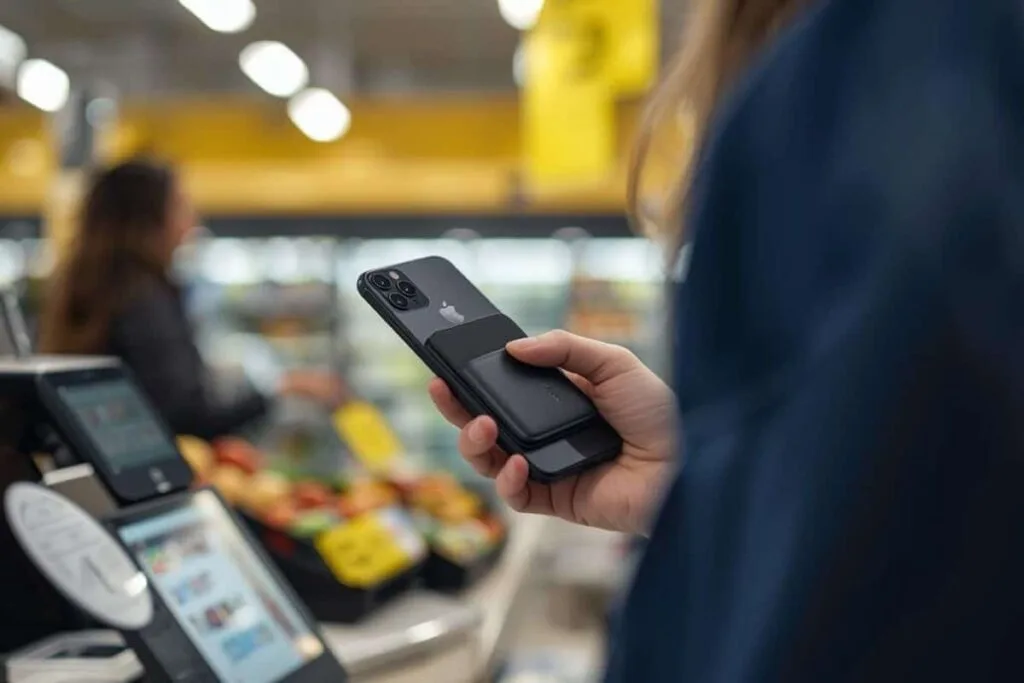
I actually ran into this myself when I tried to use Apple Pay to pay a large veterinary bill. The payment wouldn’t go through because the amount was over the transaction limit. The vet had to split the payment into two transactions, and then Apple Pay worked.
What to do:
- If you’re making a large purchase, ask the cashier if the transaction amount could be the problem.
- Try splitting the purchase into two smaller transactions to see if Apple Pay works.
- Consider carrying a MagSafe wallet on your iPhone as a backup. It’s a convenient way to have an extra card ready in case Apple Pay won’t go through or your iPhone is acting up.
If Apple Pay still isn’t working after checking limits, the next step is to try another store terminal.
Try another store terminal
Don’t assume your iPhone is the problem just yet. Apple Pay not working can sometimes come down to the payment terminal itself. The store’s tap system could be down, or the terminal itself may not be working.

What to do:
- Try holding the top edge of your iPhone (where the NFC chip is) near the terminal — sometimes the position makes a difference.
- Remove any thick or metal cases that might block the signal. If your case is the problem, check out some Apple Pay friendly cases on Amazon.
- Ask the cashier to try a different terminal or card reader if available.
- Test Apple Pay at another nearby store to see if it works there — if it does, the issue was likely the original terminal.
If Apple Pay still isn’t working after ruling out the terminal, the next step is the simplest, restart your iPhone.
Restart your iPhone
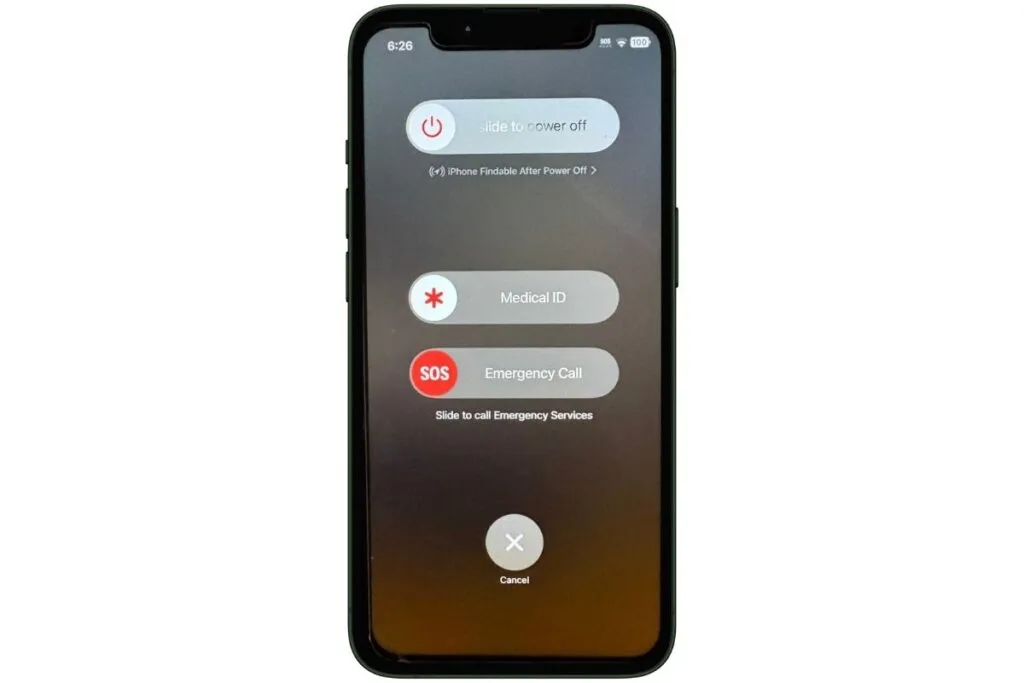
Sometimes the simplest fixes work best. Software glitches can prevent Apple Pay from working, even when all your settings and cards are correct. Restarting your iPhone often resolves these minor issues.
What to do:
- Restart your iPhone: Press and hold the side button and volume button until you see “slide to power off”. Then power on by holding the side button till you see the Apple symbol.
- After restarting, try Apple Pay again at the terminal.
If Apple Pay still isn’t working, the next step is to try a different card.
Use a different card in Apple Pay
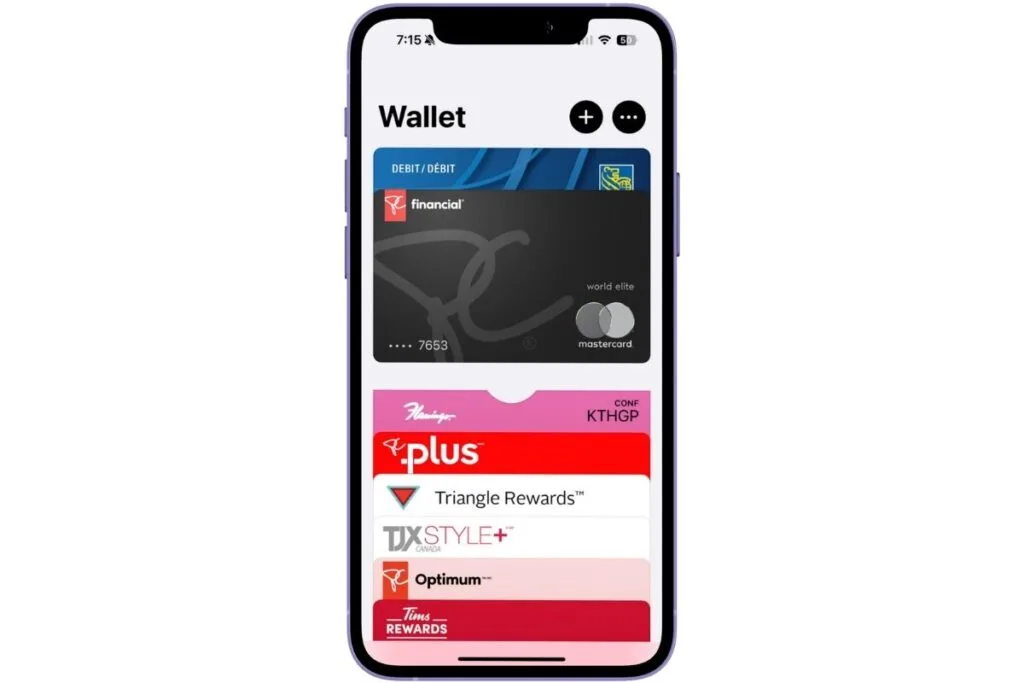
If restarting your iPhone doesn’t fix the problem, the next step is trying another card in Apple Pay. When one card isn’t working, a backup card can quickly show whether the issue is the card or something else.
What to do:
- Open the Wallet app and select a different card to try at the terminal.
- If the new card works, you know the problem was with the original card.
If Apple Pay still isn’t working after trying a different card, the next step is to check to see if your card is still active.
Is your card still active?
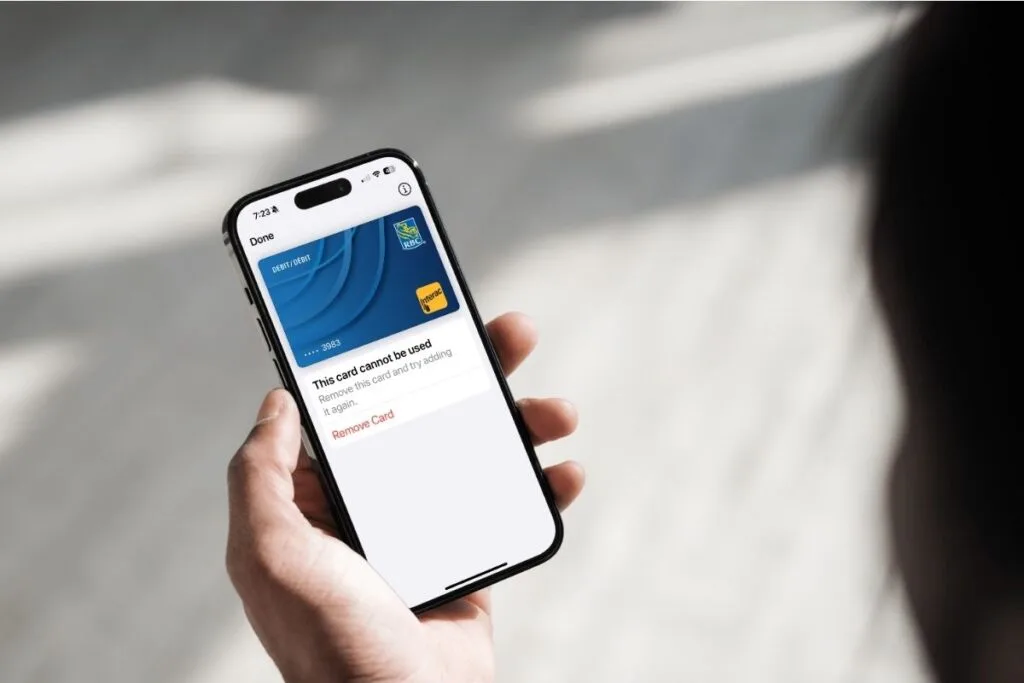
Another common reason Apple Pay is not working is that your card has expired, been replaced, or was blocked by the bank. Even if the card still looks fine in Wallet, it may not be active anymore.
What to do:
- Open the Wallet app and check if your card is listed and shows no errors (like a warning icon).
- If you recently received a new card from your bank, remove the old card and add the new one to Wallet.
- If you’re unsure about the card’s status, check your banking app or physical card for updates, or call your bank if needed.
If Apple Pay is still not working after confirming your card is active, it’s time to take a closer look at your iPhone settings.
Check your iPhone settings
If Apple Pay is still not working, it’s time to dig into your iPhone settings. Face ID or Touch ID, Wallet permissions, Date & Time, and Region all need to be set correctly for payments to work smoothly.
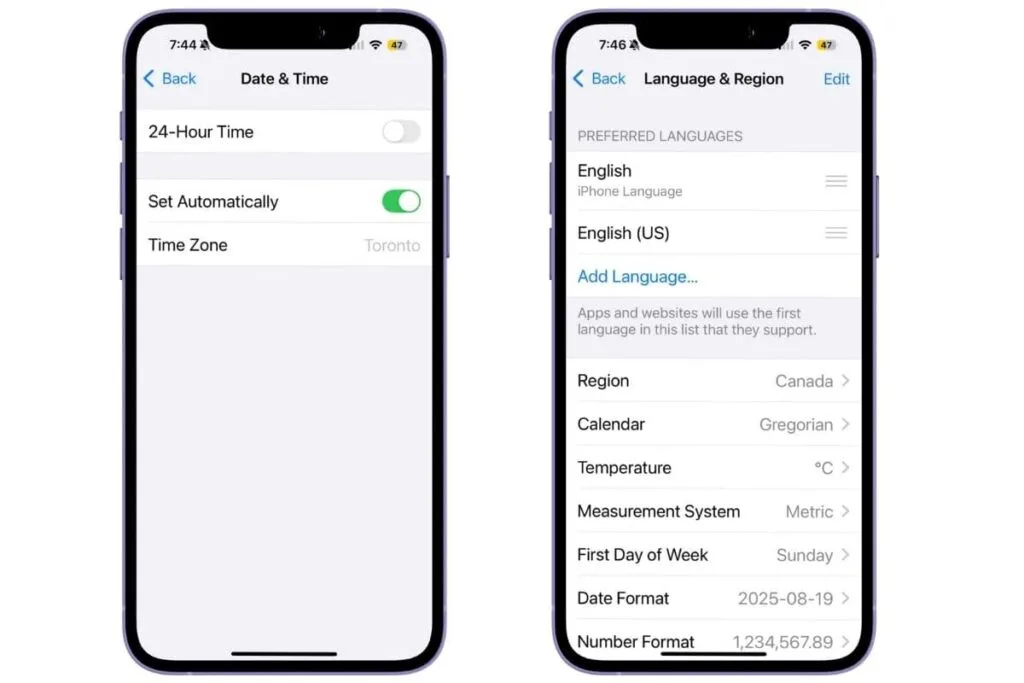
What to do:
- Unlock requirements: If your iPhone recently restarted or Face/Touch ID failed, enter your passcode first, then try Apple Pay again.
- Date & Time: Go to Settings > General > Date & Time → turn on Set Automatically. Incorrect time can prevent verification.
- Region settings: Go to Settings > General > Language & Region → confirm your region is correct. Some regions may restrict Apple Pay availability.
If Apple Pay is still not working after checking these settings, the next step is to update iOS.
Update iOS
If Apple Pay still isn’t working, check whether your iPhone is running the latest version of iOS. Apple occasionally includes fixes for problems that can affect features like Wallet and Apple Pay.
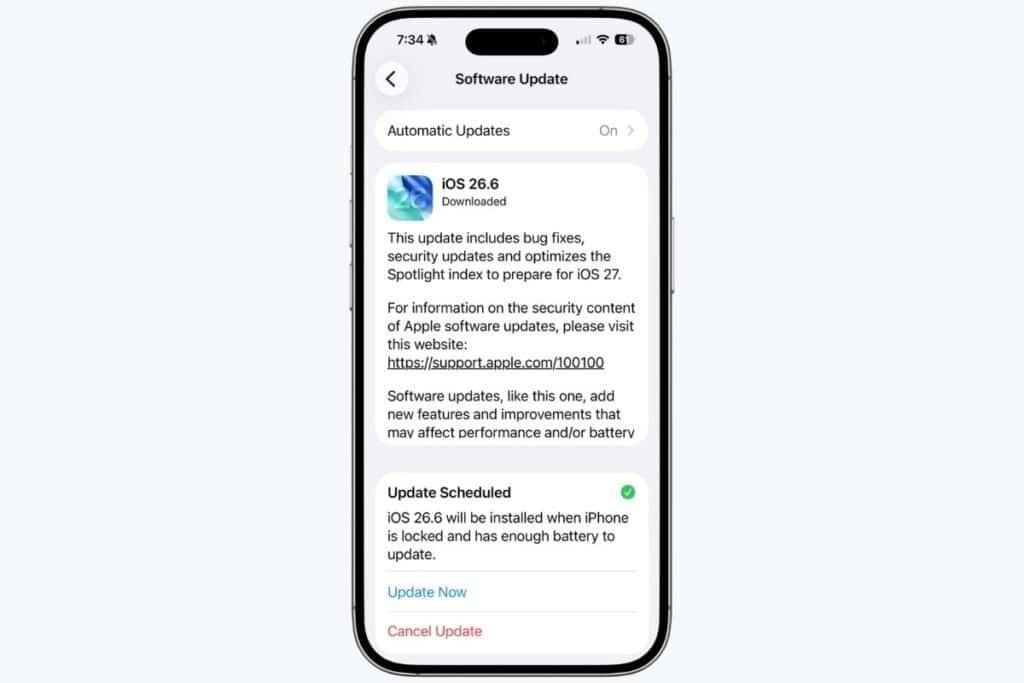
What to do:
- Update iOS: Go to Settings > General > Software Update and install any available updates.
- Make sure your iPhone is connected to Wi-Fi and has enough battery, or plug it in while the update installs.
- Once the update is complete, try Apple Pay again.
Still having trouble after updating your iOS? If you have an Apple Watch, you can use it to help figure out whether the problem is with your iPhone or something else.
Want to know what else changed in iOS 26? I break down the biggest changes in iOS 26: What Changed and Why It Feels So Different.
Have an Apple Watch?
If Apple Pay isn’t working on your iPhone and you have an Apple Watch, you can use it as a quick test to help narrow down the problem.
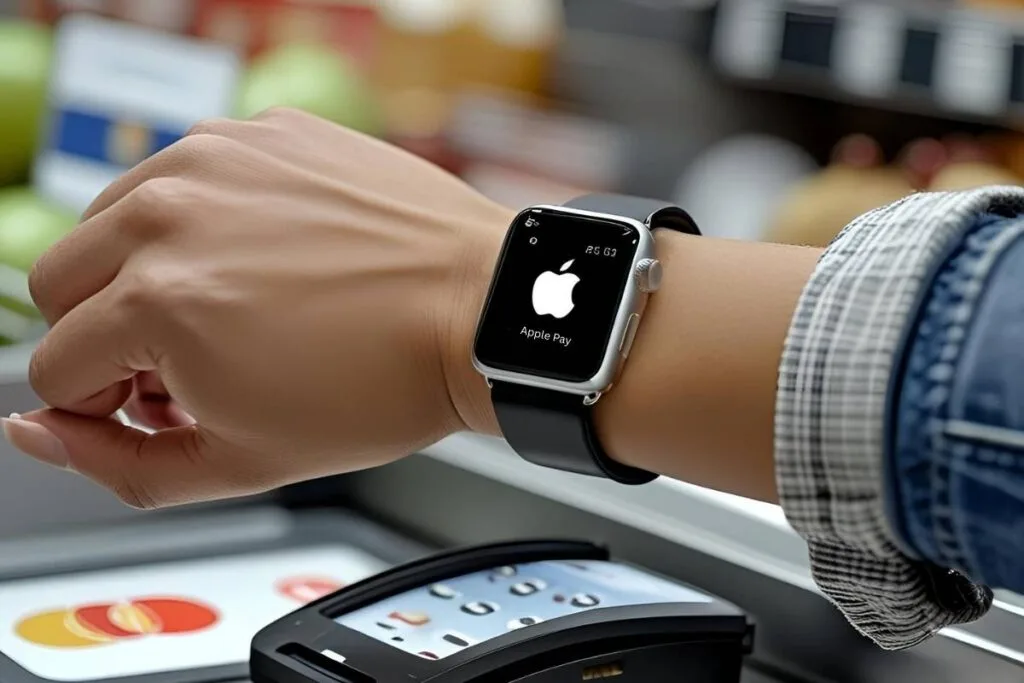
What to do:
- Double-click the Watch side button and hold the face of the watch near the terminal.
- If the Watch pays successfully → Great! The problem is likely with your iPhone’s settings or Wallet, not your card or the store.
If the Watch doesn’t pay or you don’t have an Apple Watch, the next step is to remove and re-add your cards in Wallet.
Don’t have Apple Pay set up on your Apple Watch yet? It’s worth doing — that way you’ll always have a backup if your iPhone stumbles at checkout. Here’s my guide: How to Set Up Apple Pay on Your iPhone and Apple Watch.
Remove and re-add your cards in Wallet
If Apple Pay still isn’t working, a fresh start with your cards can often fix persistent issues. Removing and re-adding your cards essentially resets Apple Pay on your iPhone.
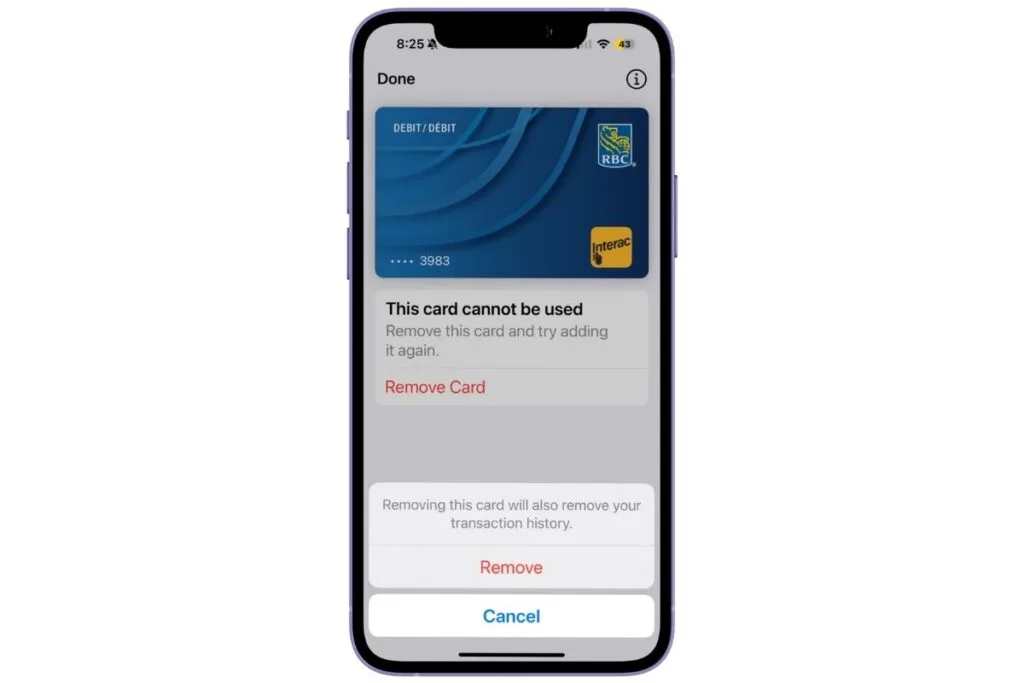
What to do:
- Open the Wallet app, select the card that isn’t working, and tap Remove Card.
- Restart your iPhone.
- Add the card back into Wallet and follow any verification steps required by your bank. If you need help setting up Apple Pay, check out my post, How to Set Up Apple Pay on iPhone and Apple Watch
If Apple Pay is still not working after re-adding your cards, the next step is to call your bank to check for any holds, declines, or security issues.
Check with your bank
If you’ve tried everything else and Apple Pay still isn’t working, it’s time to contact your bank. Sometimes, even active cards can be blocked temporarily due to security checks, unusual activity, or holds that prevent Apple Pay transactions.

What to do:
- Call the customer service number on the back of your card.
- Explain that Apple Pay is not working and describe the troubleshooting steps you’ve already tried.
- Ask them to verify that your account is active and to approve Apple Pay transactions if needed.
Apple Pay Not Working Wrap Up
When Apple Pay isn’t working, it’s easy to assume something is wrong with your iPhone. But as you’ve seen, the problem can be as simple as a purchase limit, a store’s payment terminal, a temporary iPhone glitch, or an issue with the card you’re trying to use.
Start with the quick fixes first, then work your way through the other steps if you’re still having trouble. In most cases, a little troubleshooting can get you back to using Apple Pay without much fuss.
And once it’s working again, you might be wondering just how safe it is to use. Check out Is Apple Pay Safe? What You Need to Know Before You Tap to learn how Apple Pay protects your payment information.
If you’ve enjoyed this post, stick around! I share new iPhone guides, tricks, and step-by-step tips every week. Subscribe below and follow me on Facebook and Instagram so you never miss out.

Gail Kerr
IT Professional and Technical WriterTechnology has been part of my life for as long as I can remember. With over 27 years of experience providing computer support in both large corporations and small businesses, I’ve seen just about everything. In 2009, I went back to school to earn an Associate Certificate in Technical Writing—combining my love of tech with a passion for clear, easy-to-understand communication. Now, I help people of all levels feel more confident with their devices. I’ve also become the go-to person for friends and family whenever a tech question or challenge comes up.
