

iOS updates don’t affect every iPhone the same way. Some people update to iOS 26 and never notice a single issue, while others run into small but frustrating problems — like faster battery drain, notifications behaving differently, or connections that suddenly feel unreliable.
The good news? Most iOS 26 problems are temporary — and many of the fixes are much simpler than you might think.
This isn’t a post you need to read from top to bottom. Use the table of contents below to jump to the issue you’re having, whether it’s battery life, performance, notifications, connectivity, or something else that doesn’t feel right. Before you do, it’s worth checking the quick “Before You Troubleshoot” section first — it often fixes multiple issues at once.
If you want a quick overview of what’s new and what changed in iOS 26, you can start here: iOS 26: What Changed and Why It Feels So Different
- Before You Troubleshoot: Do These 3 Things First
- Battery Draining or iPhone Feeling Hot After Updating to iOS 26
- iPhone Feels Slow or Laggy After Updating to iOS 26
- Keyboard Lag or Autocorrect Issues After Updating to iOS 26
- Wi-Fi Problems After Updating to iOS 26
- Personal Hotspot Not Working After Updating to iOS 26
- Bluetooth Problems After Updating to iOS 26
- CarPlay Issues After Updating to iOS 26
- iMessage Not Working Properly After Updating to iOS 26
- Notifications Missing, Delayed, or Going to Apple Watch After iOS 26 Update
- When to Escalate — and When Not To
Before You Troubleshoot: Do These 3 Things First
Before diving into settings or trying more drastic fixes, take a moment to do these three simple steps. They resolve a surprising number of iOS 26 update problems, especially in the first day or two after installing the update.
1. Restart Your iPhone
Yes, it’s basic — and yes, it still works. Restarting clears temporary system hiccups and helps your iPhone settle after a major iOS update.
Tip: Even if your iPhone restarted during the iOS 26 update, doing one manual restart afterward can still help.
2. Plug It In and Let It Charge
After installing the iOS 26 update, your iPhone may continue working in the background — organizing photos, syncing data, and optimizing apps. Letting it charge (especially overnight) gives the system time to finish these tasks without draining your battery.
This is often why battery life improves after a day or two.
3. Check for a Follow-Up iOS 26 Update
When you install iOS 26, you’re getting the latest version available at that time. Apple often releases small follow-up updates shortly after a major iOS release to fix early bugs.
If problems after updating to iOS 26 continue for more than a day or two, it’s worth checking again:
Settings → General → Software Update
If a newer iOS 26.x update is available, installing it can resolve issues without additional troubleshooting.
Why This Matters
Many iOS 26 problems are temporary and resolve once background tasks finish or early bug fixes are applied. Starting with these steps can save you time — and help you avoid unnecessary resets or changes that often make things worse.
If issues persist after these steps, let’s look at the most common iOS 26 problems — and what actually fixes them.
Battery Draining or iPhone Feeling Hot After Updating to iOS 26
If your battery seems to be draining faster — or your iPhone feels warmer than usual — after updating to iOS 26, you’re not imagining it. Battery drain and temporary overheating are the most common iOS 26 problems, especially in the first few days after an update.
Why This Happens After Updating to iOS 26
After a major iOS update, your iPhone continues working behind the scenes. This includes:
- Re-indexing photos and messages
- Re-optimizing apps for iOS 26
- Syncing data and system changes
All of that uses extra power — and can make your phone feel warmer than normal for a short time.
This is one of the few iOS issues where time really does help.
What Actually Helps Battery Life After iOS 26
Try these steps in order — most people won’t need to go past the first few.
1. Give It 24–72 Hours
For many users, battery life improves on its own once background tasks finish. This is especially true if you upgraded recently and have been actively using your phone.
Tip: Battery drain often looks worse the first day because people use their phone more right after an update.
2. Charge Normally (Especially Overnight)
Letting your iPhone charge — rather than hovering around low battery — gives iOS time to complete background work without draining power during active use.
3. Restart Once
A single restart can help clear lingering processes that affect battery performance after updating to iOS 26.
4. Check What’s Using Your Battery
Go to Settings → Battery and look at activity over the last 24 hours, not just percentage remaining.
You’re looking for:
- One app using an unusually high amount of battery
- Background activity you don’t recognize
If a specific app stands out, check for an app update — many developers release fixes shortly after major iOS updates.
What Usually Doesn’t Help (and Often Makes It Worse)
These are common reactions — but they rarely improve battery life after iOS 26:
- Force-closing apps constantly
- Turning off multiple features all at once
- Installing “battery cleaner” or “booster” apps
Force-closing apps repeatedly can actually increase battery use, and cleaner apps don’t have access to system-level controls on iPhone.
When Battery Drain After iOS 26 Is Not Normal
It may be time to dig deeper if:
- Battery drain is severe after several days
- Your iPhone overheats during light use
- Battery drops rapidly even when the phone is idle
- One app consistently causes spikes with no updates available
At that point, checking for a newer iOS 26.x update or troubleshooting a specific app makes more sense than waiting it out.
Bottom Line
Battery drain and warmth after updating to iOS 26 are extremely common — and usually temporary. In most cases, patience and a few simple steps work better than drastic changes.
iPhone Feels Slow or Laggy After Updating to iOS 26
If your iPhone feels slower, less responsive, or a bit “laggy” after updating to iOS 26, you’re not alone. Performance issues are one of the most common complaints after a major iOS update — especially in the first few days.
You might notice things like:
- Apps taking longer to open
- Stuttering animations
- Delays when typing or tapping
Why This Happens After Updating to iOS 26
After installing a major update, your iPhone continues doing background work similar to what affects battery life. This can temporarily impact performance.
Common causes include:
- System and app re-optimization for iOS 26
- Background indexing and syncing
- Limited available storage
For many people, this improves on its own once iOS finishes these tasks.
What Actually Helps If Your iPhone Is Slow After iOS 26
Try these steps in order — most users won’t need to go through all of them.
1. Restart Your iPhone
A simple restart can clear temporary processes that affect performance after an update.
2. Check Available Storage
Low storage can cause noticeable slowdowns.
Go to Settings → General → iPhone Storage and make sure you have a few gigabytes of free space. Even freeing up a small amount can help improve responsiveness.
3. Update Your Apps
Many apps release updates shortly after a major iOS release to improve compatibility.
Open the App Store and install any pending app updates — especially for apps you use frequently.
4. Give It a Little Time
If you updated very recently, some lag is normal. Performance often improves after a day or two of regular use and charging.
What Usually Doesn’t Help
These steps are commonly suggested but rarely improve performance:
- Force-closing apps repeatedly
- Restarting multiple times a day
- Turning off features randomly
Force-closing apps can actually increase system workload, not reduce it.
When Sluggish Performance After iOS 26 Is Not Normal
You may want to troubleshoot further if:
- Your iPhone is still slow after several days
- Apps consistently freeze or crash
- Lag affects basic tasks like unlocking or opening Settings
At that point, checking for a newer iOS 26.x update or troubleshooting a specific app may be more effective than waiting it out.
Bottom Line
A slower-feeling iPhone after updating to iOS 26 is usually temporary. Simple steps — like restarting, updating apps, and ensuring enough storage — solve most performance issues without drastic changes.
Pro Tip: Some changes in iOS 26 — like the new search placement — can feel like a problem at first even when everything is working normally. I explain that change in more detail here: iOS 26 Moved the Search Bar
Keyboard Lag or Autocorrect Issues After Updating to iOS 26
If typing feels slower, less accurate, or just off after updating to iOS 26, you’re not imagining it. Keyboard lag and unexpected autocorrect behavior are common iOS 26 problems, especially in the days following a major update.
You might notice:
- Delays between typing and letters appearing
- Autocorrect changing words you didn’t intend
- Different behavior across apps
Why Keyboard Issues Happen After Updating to iOS 26
After a major iOS update, the keyboard may need time to re-learn usage patterns and adjust to system changes. In some cases, third-party apps or keyboards haven’t fully optimized for the new version yet.
Common causes include:
- Background system re-indexing
- App compatibility issues
- Keyboard settings behaving differently after the update
What Actually Helps Keyboard Lag and Autocorrect Issues
Try these steps in order — many users see improvement after the first one or two.
1. Restart Your iPhone
Restarting can clear temporary glitches affecting keyboard responsiveness.
2. Update Your Apps
Keyboard lag often shows up inside specific apps.
Open the App Store and install any pending updates, especially for messaging, email, or social media apps.
3. Toggle Keyboard Settings Off and On
This can “reset” keyboard behavior without deleting anything.
Go to Settings → General → Keyboard, then:
- Turn Predictive off, wait a few seconds, then turn it back on
- Do the same for Auto-Correction
Many users notice immediate improvement.
4. Test the Default Apple Keyboard
If you use a third-party keyboard, switch back to Apple’s built-in keyboard temporarily to see if lag improves. This helps identify whether the issue is iOS-wide or app-specific.
What Usually Doesn’t Help
These steps are often suggested but rarely fix keyboard issues:
- Clearing app “cache” (not applicable on iPhone)
- Resetting your entire phone right away
- Installing keyboard “booster” apps
When Keyboard Issues After iOS 26 Are Not Normal
Consider further troubleshooting if:
- Typing lag persists after several days
- Autocorrect becomes unusable across all apps
- Keyboard delays affect basic tasks like entering passwords
At that point, checking for a newer iOS 26.x update or contacting app support may be appropriate.
Bottom Line
Keyboard lag and autocorrect issues after updating to iOS 26 are common and usually temporary. Simple steps — like restarting, updating apps, and resetting keyboard settings — resolve most problems without drastic measures.
Wi-Fi Problems After Updating to iOS 26
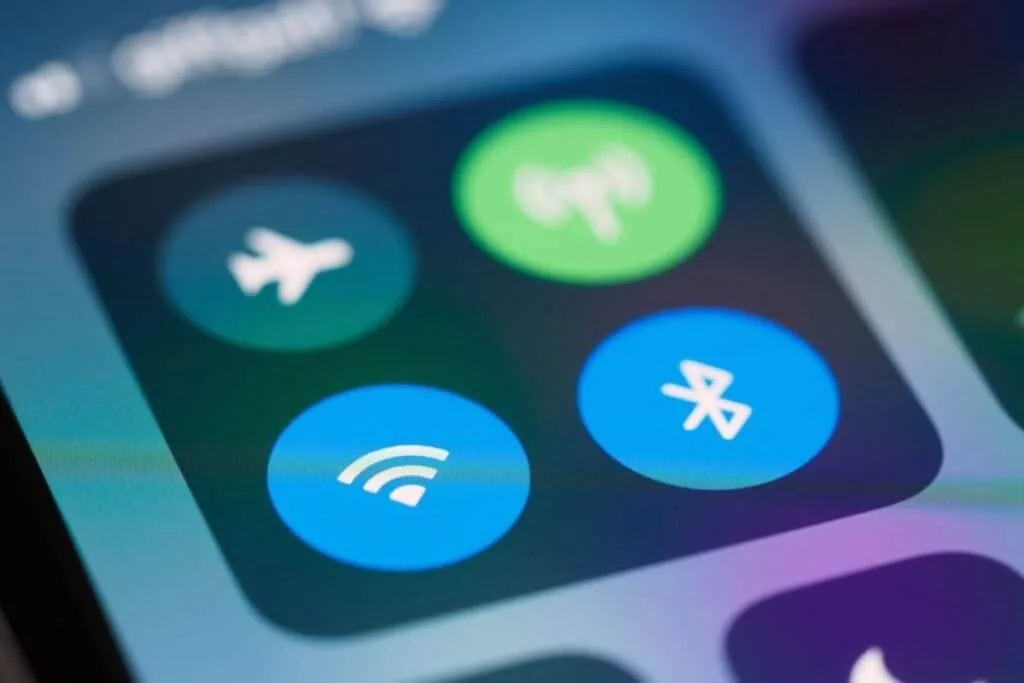
If your iPhone won’t connect to Wi-Fi, keeps dropping the connection, or feels slower than usual after updating to iOS 26, you’re not alone. Wi-Fi issues are a common complaint after major iOS updates and can show up even on networks that worked perfectly before.
You might notice:
- Wi-Fi won’t connect at all
- Connection drops randomly
- Pages load slowly despite a strong signal
Why Wi-Fi Issues Happen After Updating to iOS 26
After an iOS update, your iPhone may need to re-establish saved network connections and settings. In some cases, existing Wi-Fi profiles don’t play nicely with system changes right away.
Common causes include:
- Network settings not migrating cleanly
- Router compatibility quirks
- Temporary system glitches after the update
What Actually Helps Wi-Fi Problems After iOS 26
Try these steps in order. Many Wi-Fi issues are fixed by the first or second step.
1. Toggle Wi-Fi Off and Restart
Turn Wi-Fi off, restart your iPhone, then turn Wi-Fi back on. This clears temporary connection issues.
2. Forget and Reconnect to the Network
If one specific network is causing trouble, this is often the fix.
Go to Settings → Wi-Fi, tap the ⓘ next to the network, choose Forget This Network, then reconnect and re-enter the password.
3. Restart Your Router
It sounds obvious, but it matters — especially after a device update. Unplug your router for 30 seconds, then plug it back in and let it fully restart.
4. Reset Network Settings (Use With Care)
If Wi-Fi problems continue across multiple networks, resetting network settings can help.
Go to Settings → General → Transfer or Reset iPhone → Reset → Reset Network Settings.
Note: This will remove saved Wi-Fi passwords, Bluetooth pairings, and VPNs — but it does not erase your data.
What Usually Doesn’t Help
These steps rarely solve Wi-Fi issues after iOS 26:
- Resetting your entire iPhone right away
- Installing Wi-Fi “booster” or “cleaner” apps
- Changing multiple settings at once without testing
When Wi-Fi Issues After iOS 26 Are Not Normal
You may need to dig deeper if:
- Wi-Fi won’t connect on any network
- Problems continue after resetting network settings
- Other devices work fine on the same network, but your iPhone doesn’t
At that point, checking for a newer iOS 26.x update or contacting Apple Support may be appropriate.
Bottom Line
Wi-Fi problems after updating to iOS 26 are common and often temporary. Simple steps — like reconnecting to the network or resetting network settings — resolve most issues without drastic fixes.
Personal Hotspot Not Working After Updating to iOS 26
If your Personal Hotspot stopped working, won’t turn on, or other devices can’t connect after updating to iOS 26, you’re not alone. Hotspot issues are fairly common after major iOS updates and are often tied to the same network settings that affect Wi-Fi and Bluetooth.
You might notice:
- Personal Hotspot won’t turn on
- Other devices can’t see your hotspot
- Devices connect but have no internet
Why Personal Hotspot Issues Happen After Updating to iOS 26
Personal Hotspot relies on several system components working together — including cellular data, Wi-Fi, and Bluetooth. After an update, those connections sometimes need to be refreshed.
Common causes include:
- Network settings not updating cleanly
- Carrier-related changes after the update
- Temporary glitches affecting cellular data sharing
What Actually Helps When Personal Hotspot Isn’t Working
Try these steps in order — most hotspot issues are resolved before the last step.
1. Restart Your iPhone
A restart can clear temporary issues affecting cellular and network sharing.
2. Toggle Personal Hotspot Off and On
Go to Settings → Personal Hotspot, turn it off, wait a few seconds, then turn it back on.
If you don’t see Personal Hotspot:
- Go to Settings → Cellular
- Make sure Cellular Data is turned on
3. Check Your Cellular Connection
Personal Hotspot won’t work if cellular data isn’t active.
Make sure:
- You have a cellular signal
- Cellular data works for browsing
4. Restart the Device Trying to Connect
Sometimes the issue is on the other device, not the iPhone sharing the hotspot.
5. Reset Network Settings (Use With Care)
If hotspot problems persist, resetting network settings often helps.
Go to Settings → General → Transfer or Reset iPhone → Reset → Reset Network Settings.
Note: This removes saved Wi-Fi networks, Bluetooth pairings, and VPNs, but does not erase your data.
What Usually Doesn’t Help
These steps rarely fix hotspot issues after iOS 26:
- Turning off cellular data repeatedly
- Installing hotspot or network “booster” apps
- Resetting your entire iPhone right away
When Personal Hotspot Issues After iOS 26 Are Not Normal
You may need to take the next step if:
- Hotspot won’t work after resetting network settings
- Cellular data itself isn’t working
- Your carrier plan no longer supports hotspot usage
At that point, contacting your carrier or checking for a newer iOS 26.x update may be necessary.
Bottom Line
Personal Hotspot problems after updating to iOS 26 are common and usually tied to network settings. Restarting your iPhone or resetting network settings resolves most issues without more drastic steps.
If Personal Hotspot is new or something you don’t use very often, this guide walks through what it is and how to use it: What Is a Personal Hotspot on iPhone? A Simple Guide
Bluetooth Problems After Updating to iOS 26
If Bluetooth devices won’t connect, keep disconnecting, or behave unpredictably after updating to iOS 26, you’re not alone. Bluetooth issues are common after major iOS updates and often affect headphones, car connections, speakers, and other accessories.
You might notice:
- Devices won’t pair
- Bluetooth connections drop randomly
- Audio cuts in and out
Why Bluetooth Issues Happen After Updating to iOS 26
Bluetooth relies on saved connection profiles and background system services. After a major iOS update, those profiles sometimes need to be refreshed.
Common causes include:
- Older Bluetooth pairings not migrating cleanly
- Accessory firmware not updated for iOS 26
- Temporary system glitches after the update
What Actually Helps Bluetooth Issues After iOS 26
Try these steps in order — many Bluetooth issues resolve quickly.
1. Toggle Bluetooth Off and Restart
Turn Bluetooth off, restart your iPhone, then turn Bluetooth back on.
2. Forget and Re-Pair the Device
This is often the most effective fix.
Go to Settings → Bluetooth, tap the ⓘ next to the device, choose Forget This Device, then pair it again.
3. Restart the Bluetooth Accessory
Power off the accessory (headphones, speaker, car system if possible), then turn it back on before reconnecting.
4. Check for Accessory Updates
Some accessories — especially headphones and car systems — may need firmware updates to work properly with iOS 26.
5. Reset Network Settings (Last Resort)
If Bluetooth problems persist across multiple devices, resetting network settings may help.
Go to Settings → General → Transfer or Reset iPhone → Reset → Reset Network Settings.
Note: This removes saved Wi-Fi networks, Bluetooth pairings, and VPNs, but does not erase your data.
What Usually Doesn’t Help
These steps rarely fix Bluetooth issues after iOS 26:
- Re-pairing repeatedly without restarting
- Installing Bluetooth “fix” apps
- Resetting your entire iPhone immediately
When Bluetooth Issues After iOS 26 Are Not Normal
You may need further troubleshooting if:
- Bluetooth won’t turn on at all
- No devices can connect
- Problems persist after resetting network settings
At that point, checking for a newer iOS 26.x update or contacting Apple Support may be appropriate.
Bottom Line
Bluetooth problems after updating to iOS 26 are common and usually temporary. Re-pairing devices and refreshing network settings resolve most issues without drastic steps.
CarPlay Issues After Updating to iOS 26
If CarPlay won’t connect, disconnects randomly, or behaves differently after updating to iOS 26, you’re not alone. CarPlay issues are a common complaint after major iOS updates, especially with wireless CarPlay.
You might notice:
- CarPlay won’t connect at all
- Wireless CarPlay disconnects or freezes
- CarPlay drains your battery faster than usual
Why CarPlay Issues Happen After Updating to iOS 26
CarPlay relies on multiple connections working together — Bluetooth, Wi-Fi (for wireless CarPlay), and the car’s infotainment system. After a major iOS update, those connections sometimes need to be refreshed or re-established.
Common causes include:
- Old CarPlay pairings conflicting with iOS 26
- Wireless CarPlay connection glitches
- Vehicle software not fully compatible yet
What Actually Helps CarPlay Issues After iOS 26
Try these steps in order — many CarPlay problems are resolved before the last step.
1. Restart Your iPhone and Your Car System
Restart your iPhone and, if possible, turn your car off completely for a few minutes before restarting it. This clears temporary connection issues.
2. Try Wired CarPlay (If You Usually Use Wireless)
If wireless CarPlay is unstable, connect your iPhone using a cable to see if the issue improves. This helps determine whether the problem is related to the wireless connection.
3. Forget the Car and Reconnect CarPlay
This is often the most effective fix.
Go to Settings → General → CarPlay, select your car, then tap Forget This Car.
Reconnect CarPlay from scratch.
4. Check for Vehicle Software Updates
Some vehicles require infotainment system updates to stay compatible with newer iOS versions. If CarPlay issues persist, check your vehicle manufacturer’s update options.
5. Reset Network Settings (Last Resort)
If CarPlay problems continue, resetting network settings may help — especially for wireless CarPlay.
Go to Settings → General → Transfer or Reset iPhone → Reset → Reset Network Settings.
Note: This removes saved Wi-Fi networks, Bluetooth pairings, and VPNs, but does not erase your data.
What Usually Doesn’t Help
These steps rarely fix CarPlay issues after iOS 26:
- Reconnecting repeatedly without restarting
- Resetting all iPhone settings immediately
- Changing multiple settings at once
When CarPlay Issues After iOS 26 Are Not Normal
You may need to take the next step if:
- CarPlay won’t connect at all after re-pairing
- Wired and wireless CarPlay both fail
- Issues persist after network settings reset
At that point, checking for a newer iOS 26.x update or contacting Apple Support may be appropriate.
Bottom Line
CarPlay issues after updating to iOS 26 are common and usually related to connection settings. Re-pairing CarPlay and refreshing network connections resolve most problems without drastic fixes.
iMessage Not Working Properly After Updating to iOS 26
If iMessage stopped working, messages won’t send, or texts are sending as green bubbles after updating to iOS 26, you’re not alone. iMessage issues are a common problem after major iOS updates, especially when phone number or SIM settings don’t refresh cleanly.
You might notice:
- Messages failing to send
- Messages sending as SMS (green bubbles) instead of iMessage
- iMessage activating with your email instead of your phone number
- Delays or missing messages
Why iMessage Issues Happen After Updating to iOS 26
iMessage relies on your phone number, Apple ID, and network settings all working together. After a major update, those connections sometimes need to be re-verified.
Common causes include:
- iMessage not re-activating correctly after the update
- SIM or eSIM settings not syncing properly
- Network settings interfering with message activation
What Actually Helps iMessage Problems After iOS 26
Try these steps in order — many iMessage issues are fixed quickly.
1. Make Sure iMessage Is Turned On
Go to Settings → Messages and confirm iMessage is enabled.
2. Check “Send & Receive” Settings
Go to Settings → Messages → Send & Receive and make sure:
- Your phone number is checked
- Your Apple ID email is correct
If your phone number isn’t selected, tap it to activate it.
3. Toggle iMessage Off and Back On
This forces iMessage to re-register.
- Turn iMessage off
- Restart your iPhone
- Turn iMessage back on
Give it a few minutes to activate.
4. Check Your Network Connection
iMessage requires an active internet connection.
- Make sure Wi-Fi or cellular data is working
- Try switching between Wi-Fi and cellular to test
5. Check for a Follow-Up iOS 26 Update
Apple often releases follow-up updates to fix messaging bugs. If iMessage issues continue, check for an iOS 26.x update under Settings → General → Software Update.
What Usually Doesn’t Help
These steps are commonly suggested but rarely fix iMessage problems:
- Restarting repeatedly without changing settings
- Signing out of iCloud immediately
- Resetting your entire iPhone right away
When iMessage Issues After iOS 26 Are Not Normal
You may need further help if:
- iMessage won’t activate after several attempts
- Your phone number won’t register at all
- Messages fail consistently across all conversations
At that point, contacting Apple Support or your carrier may be necessary.
Bottom Line
iMessage problems after updating to iOS 26 are common and usually related to activation or network settings. Checking Send & Receive settings and refreshing iMessage activation resolves most issues without drastic steps.
Notifications Missing, Delayed, or Going to Apple Watch After iOS 26 Update
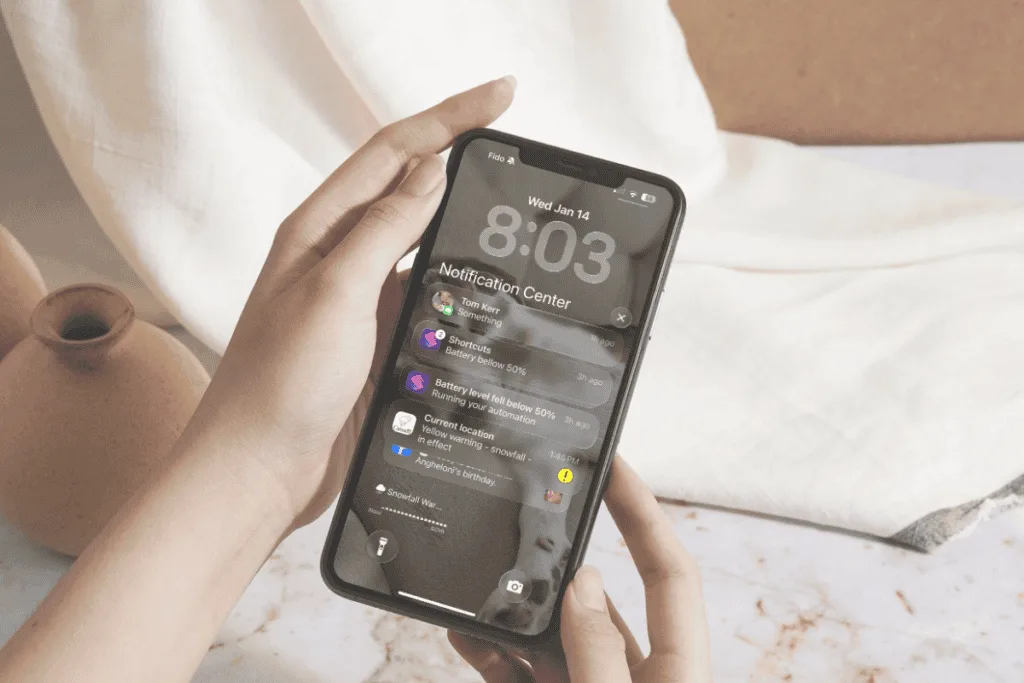
If notifications aren’t showing on your iPhone, arrive late, or seem to go straight to your Apple Watch after updating to iOS 26, you’re not alone. Notification issues are common after major updates — and when you use an Apple Watch, the Watch itself is often part of the explanation.
You might notice:
- No banner notifications while using your iPhone
- Notifications arriving late or inconsistently
- Alerts going to your Apple Watch instead of your iPhone
Why Notification Issues Happen After Updating to iOS 26
Notifications rely on several systems working together — Focus modes, per-app settings, and how your iPhone and Apple Watch coordinate alerts. After an update, those rules don’t always behave the way you expect.
In many cases, the Apple Watch becomes more aggressive about “claiming” notifications, even when your iPhone is unlocked and in use.
Check This Apple Watch Setting First (Very Easy to Miss)
This is what fixed the issue for me — and it’s often the simplest solution.
On your Apple Watch (not the iPhone):
- Open Settings
- Tap Notifications
- Make sure Tap to Show Full Notification is ON
When this setting is off, the Apple Watch is more likely to take over alerts instead of letting them appear on your iPhone.
Once it’s turned on, notifications typically behave more normally — showing on your iPhone when you’re using it and on your Watch when you’re not.
If Notifications Still Feel Off, Check These Next
Try these steps in order — many notification issues are resolved quickly.
1. Check Focus Mode First
Go to Settings → Focus and make sure:
- No Focus mode is turned on unexpectedly
- Apps or people aren’t silenced unintentionally
Even a scheduled Focus mode can block notifications without you realizing it.
2. Check Per-App Notification Settings
Go to Settings → Notifications, select the affected app, and confirm:
- Allow Notifications is turned on
- Lock Screen, Banners, and Sounds are enabled as desired
Toggling notifications off and back on for a problem app can help reset behavior.
3. Restart Both Devices
Restart your iPhone and your Apple Watch to refresh how notifications are handled between them.
What Usually Doesn’t Help
These steps rarely fix notification issues:
- Resetting all settings immediately
- Reinstalling apps without checking notification permissions
- Turning off multiple features at once
When Notification Issues After iOS 26 Are Not Normal
You may need further troubleshooting if:
- Notifications don’t appear on either device
- Alerts are missing for all apps
- Issues persist after checking Watch, Focus, and app settings
At that point, checking for a newer iOS 26.x update or contacting Apple Support may be appropriate.
Bottom Line
Notification issues after updating to iOS 26 are usually caused by settings changes or device handoff behavior, not a broken iPhone. Focus modes, per-app notification settings, and how your Apple Watch handles alerts can all affect where and when notifications appear. Starting with the Apple Watch notification setting — then checking Focus and app permissions — resolves most notification problems without drastic fixes.
When to Escalate — and When Not To
After a major update like iOS 26, it can be hard to tell whether something is a temporary adjustment or a real problem that needs attention. This section helps you decide when to stop troubleshooting — and when to take the next step.
When It’s Best to Wait a Little Longer
In many cases, patience really is part of the fix. It’s usually safe to wait if:
- The issue started immediately after updating
- Battery life, performance, or storage is slowly improving
- Problems are minor or inconsistent
- Your iPhone works normally after a restart
Background system tasks can take a day or two to finish, especially if you’ve been actively using your phone since updating.
When It Makes Sense to Dig Deeper
You may want to take further action if:
- The issue lasts more than a few days with no improvement
- One specific app consistently misbehaves
- Connectivity issues affect all networks or devices
- Problems interfere with basic phone use
At this point, checking for an iOS 26.x update or troubleshooting a specific app is usually more effective than repeating basic steps.
When to Contact Apple or Your Carrier
It’s time to escalate if:
- Your iPhone overheats during light use
- Battery drains rapidly even when idle
- iMessage won’t activate at all
- Cellular data or calling doesn’t work
- Network resets don’t resolve connectivity issues
These situations are less common, but they do happen — and they’re best handled with direct support.
What You Usually Don’t Need to Do
In most cases, you can avoid:
- Erasing your iPhone
- Resetting all settings immediately
- Installing “fix” or “cleaner” apps
- Making multiple changes at once
Those steps often add frustration without solving the underlying issue.
Final Takeaway
Most iOS 26 problems are temporary, manageable, and far less serious than they first appear. Starting with simple steps — and knowing when to stop — can save you time, stress, and unnecessary fixes.
If you don’t see your exact issue here, bookmark this page and check back. Apple continues refining iOS 26 through follow-up updates, and solutions often get simpler over time.
Related reading
If you updated to iOS 26 and suddenly can’t find older emails on your iPhone, this is a common issue with a simple explanation. You can read more here: Why Can’t I See Older Email on My iPhone?
If you’ve enjoyed this post, stick around! I share new iPhone guides, tricks, and step-by-step tips every week. Subscribe below and follow me on Facebook and Instagram so you never miss out.

Gail Kerr
IT Professional and Technical WriterTechnology has been a part of my life for as long as I can remember. I have over 27 years of experience providing computer support in large corporations and small businesses. I went back to school in 2009 to get an Associate Certificate in Technical Writing so I could take my love of tech and become proficient at writing clear and easy to understand documents for people of all levels. I’ve become the go to person for family and friends whenever they have tech questions or challenges.