If your iPhone battery is draining too fast, you’re definitely not alone. It’s one of the most common frustrations—your phone starts the day fully charged, and somehow it’s already dropping faster than you expect.
Most people assume the battery is wearing out… and sometimes that’s true. But often, it’s not the battery at all. It’s a few everyday things happening in the background—settings and habits that quietly use power without you realizing it. Things like apps refreshing, constant notifications, or even how you’re streaming music can all add up.
The tricky part is, you don’t really see any of this happening—so it feels like your battery is draining for no reason. The good news? You don’t need to change everything.
In this post, I’ll walk you through a few simple things that could be draining your battery—and how to check them in just a few taps.
Streaming vs Downloading: A Hidden Battery Drain
This is one of those things most people don’t think about, I know I didn’t. Once I made this adjustment it made a real difference in how fast my battery drained.
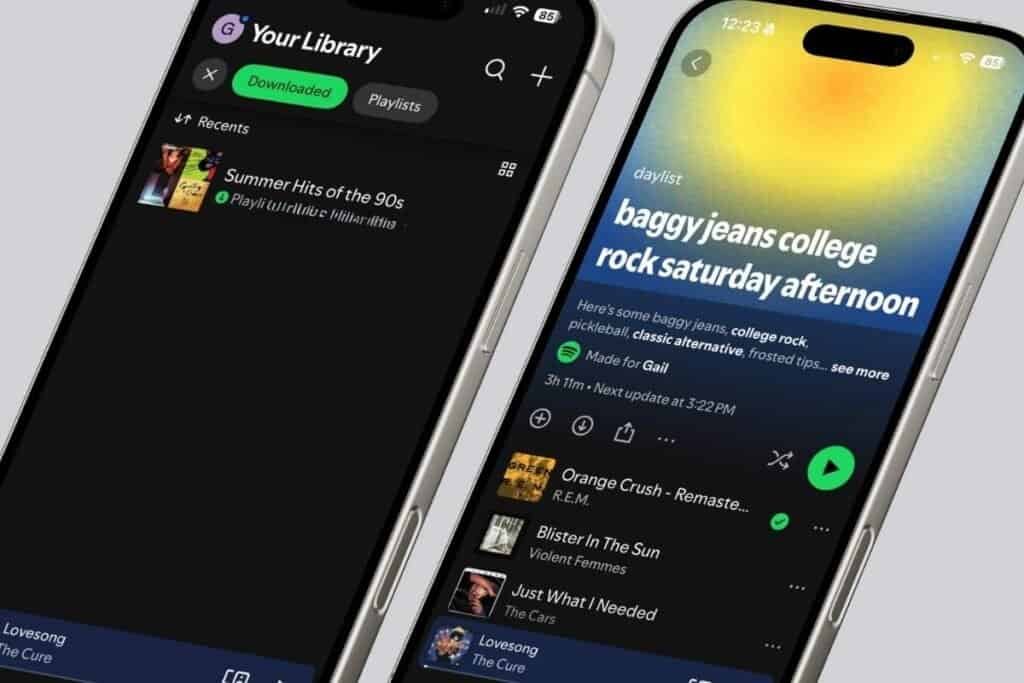
If you regularly stream music, radio, or podcasts on your iPhone, your battery may be working harder than it needs to.
Here’s why:
When you stream, your iPhone is constantly using Wi-Fi or cellular data to play that content in real time. That means it’s staying connected and downloading as it goes.
But when something is downloaded, it’s already on your phone. So your iPhone can just play it—no constant connection needed.
Less work equals less battery used. But don’t forget how you are accessing your data. That plays a part in your battery drain too.
Wi-Fi vs Cellular: This Matters Too
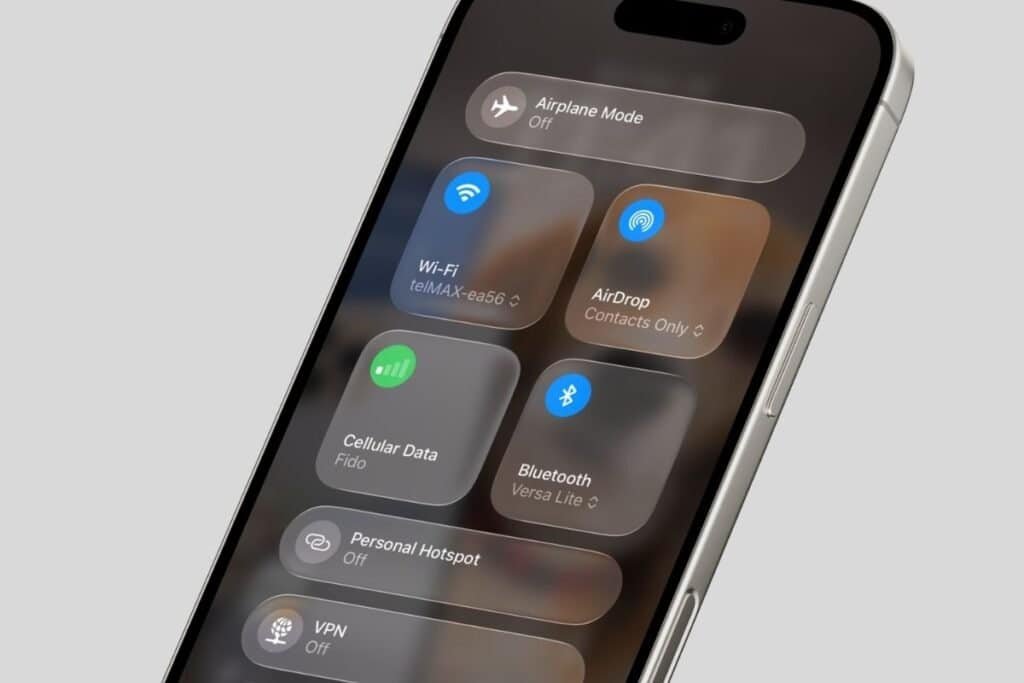
There’s another piece to this that many people don’t realize, again I didn’t. If you’re streaming using cellular data, your battery will usually drain faster than if you’re on Wi-Fi. That’s because your iPhone has to work harder to stay connected—especially if your signal isn’t strong.
So if you’re:
- Streaming a radio station at work
- Listening to music on the go
- Playing a podcast without downloading it first
You’re likely using more battery than you need to.
What You Can Do
You don’t have to stop streaming—but a small change can help:
- Download music or podcasts when you can
- Use Wi-Fi instead of cellular when it’s available
- Especially for longer listening (like at work or on a walk)
This is one of those simple habits that can quietly make your battery last longer—without changing how you use your iPhone very much.
Your Screen Might Be Turning On All Day
If your iPhone battery is draining faster than expected, your screen could be part of the reason. Even if you’re not using your phone a lot, it may still be lighting up throughout the day and each time it does, it uses a bit of battery.
Here are two common reasons this happens:
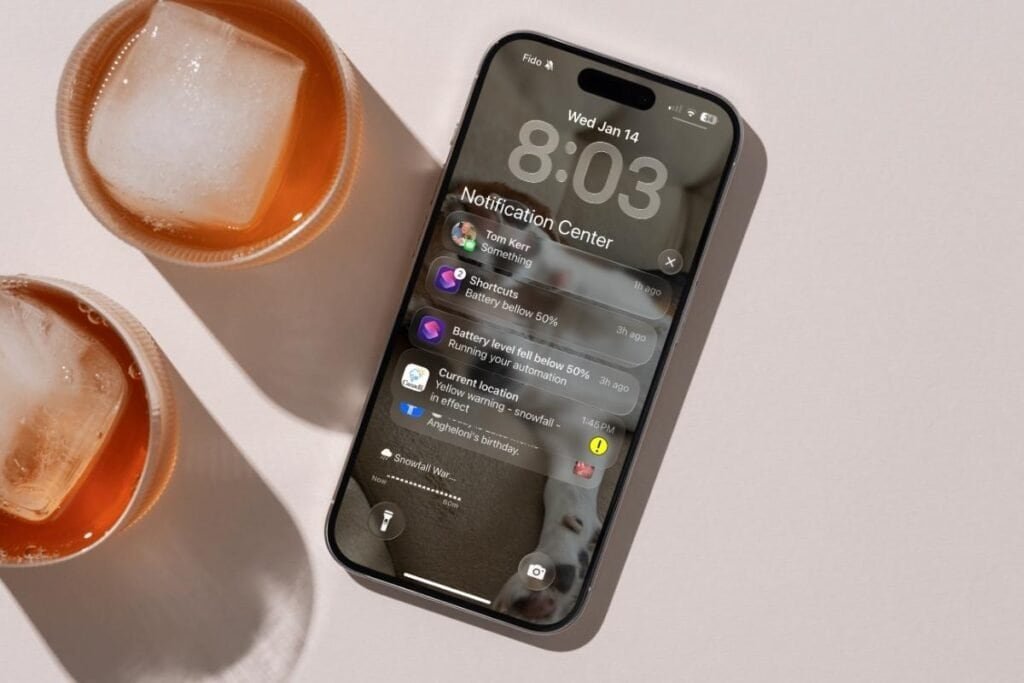
Notifications
Notifications are helpful—but they can also be a quiet battery drain, especially if you’re getting a lot of them.
Every time a notification comes in, your iPhone may:
- Light up the screen
- Play a sound or vibrate
- Wake up the app briefly in the background
It only takes a second… but if it’s happening all day long, it adds up.
Think about how often your phone lights up:
- News alerts
- Shopping apps
- Social media
- Games
- Even if you’re not picking up your phone, it’s still using battery.
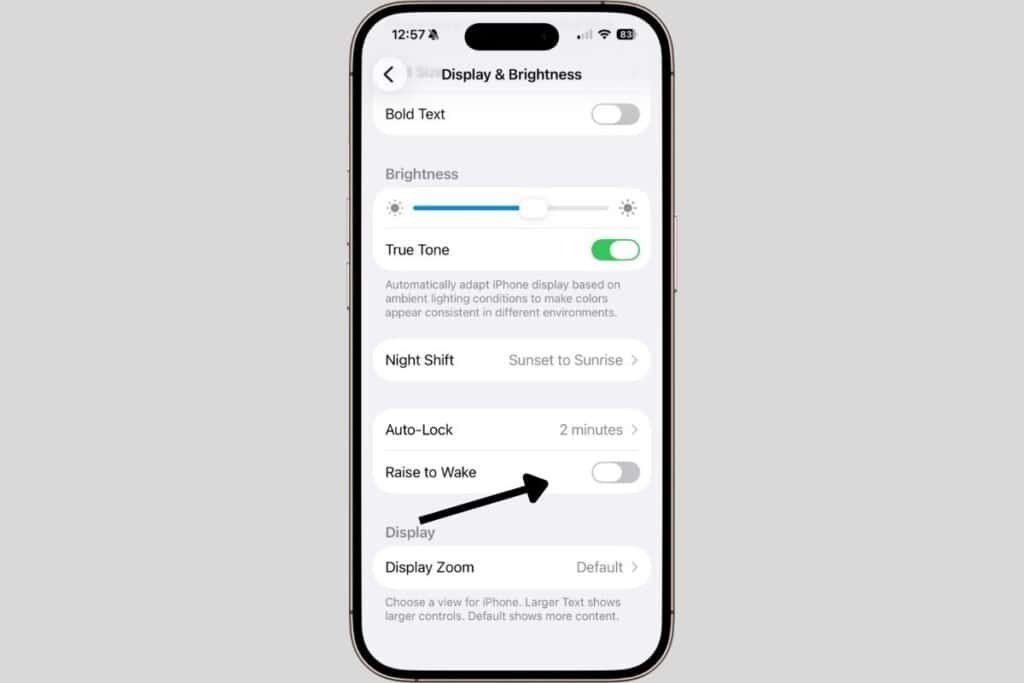
Raise to Wake
There’s another setting that can turn your screen on without you realizing it.
It’s called Raise to Wake, and it lights up your screen every time you pick up your iPhone.
That might not sound like a big deal—but if you’re picking up your phone throughout the day (even just to move it or check the time), your screen could be turning on far more often than you think.
What You Can Do
You don’t need to turn everything off—just make a few small adjustments.
Check your notifications:
- Open Settings
- Tap Notifications
- Scroll through your apps
For each app, you can:
- Turn Allow Notifications off, or
- Remove Lock Screen notifications
Not sure where to start? I’ve got a simple guide that walks through notifications and how to clean them up without missing anything important.
iPhone Notifications Made Simple: Take Control of Your Alerts
Check Raise to Wake:
- Open Settings
- Tap Display & Brightness
- Turn off Raise to Wake
If your phone lights up constantly throughout the day, this is a great place to start. I turned off Raise to Wake and adjusted my Notifications and found it really helped save my battery and I was a lot less distracted.
Apps Might Be Working in the Background
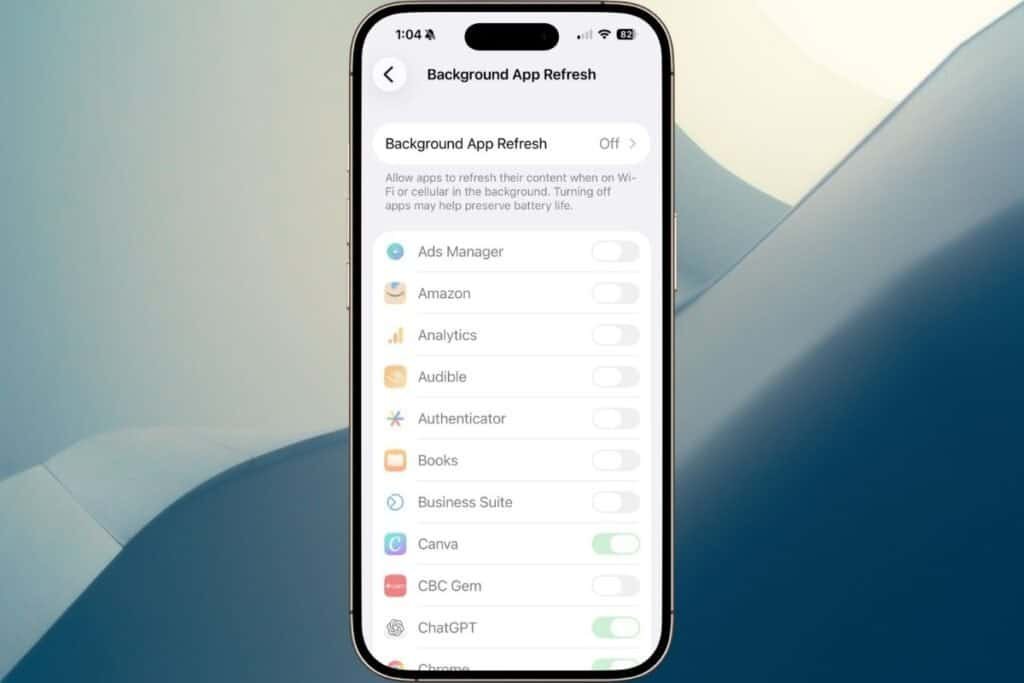
Even when you’re not using your iPhone, some apps may still be active behind the scenes. This feature is called Background App Refresh.
Background App Refresh
Background App Refresh, allows apps to update content in the background—so things like news, weather, or social media are already up to date when you open them.
Helpful? Sometimes. But if a lot of apps are doing this, it can quietly drain your battery throughout the day.
What You Can Do
You don’t have to turn this off completely—just be selective.
How to check Background App Refresh:
- Open Settings
- Tap General
- Tap Background App Refresh
Here, you’ll see a list of apps.
You can:
- Turn it off completely, or
- Leave it on, but turn it off for apps you don’t need updating all the time
If you don’t need an app to update when you’re not using it, it’s safe to turn this off. A lot of people start with, shopping apps, games or apps they rarely use.
Apps Might Be Tracking Your Location More Than You Think
Some apps use your location to work properly—like maps or weather.
But others may be checking your location more often than they really need to, even when you’re not using them. Over time, this can quietly use battery in the background.
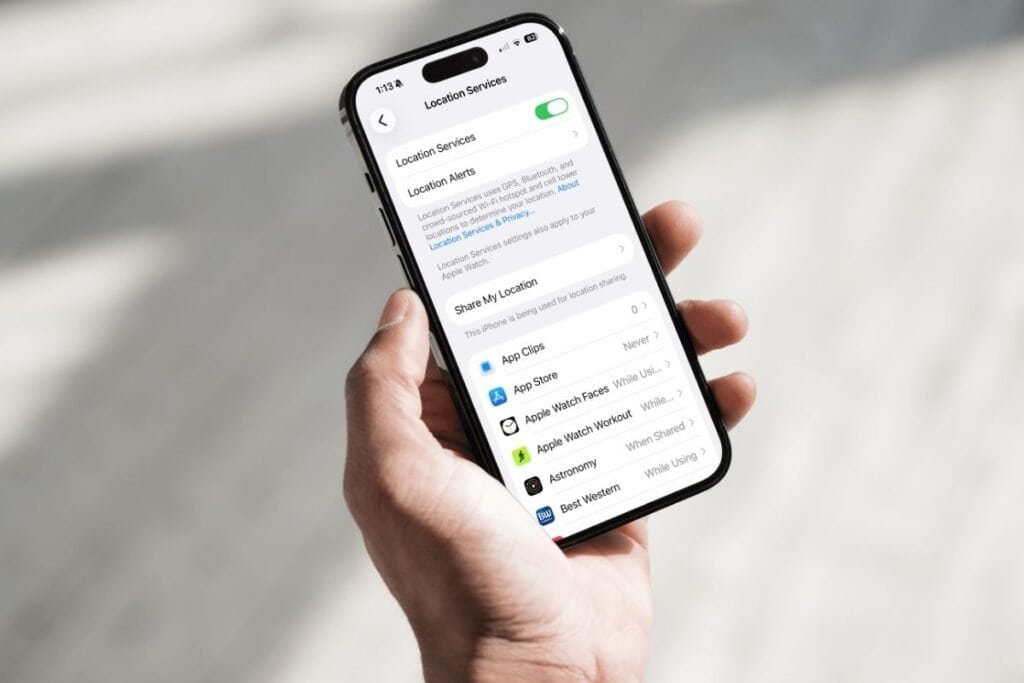
Location Services
Each app can have a different level of access to your location.
The one to watch for is “Always.” If an app is set to “Always,” it can check your location even when it’s not open. For many apps, that’s not necessary—and it can use more battery than you might expect.
What You Can Do
You don’t need to turn off Location Services completely—just adjust a few apps.
How to check your Location settings:
- Open Settings
- Tap Privacy & Security
- Tap Location Services
Scroll through your apps and look for ones set to “Always.” For most apps, you can change this to “While Using the App”
A good rule is if an app doesn’t need your location all the time, switch it to “While Using.”
You might keep “Always” on for things like Navigation apps or Safety or tracking apps (if you use them).
Your iPhone Might Be Checking Email More Often Than You Think
If you use the Mail app, your iPhone may be checking for new emails throughout the day—even when you’re not opening it.
This can be helpful if you need emails right away, but it can also use more battery than necessary.
Push vs Fetch
There are two ways your iPhone checks for new email:
- Push → Emails arrive instantly as they come in
- Fetch → Your iPhone checks for new emails at set times (like every 15 minutes)
With Push, your iPhone is always staying connected and ready.
That constant connection can use more battery over time.
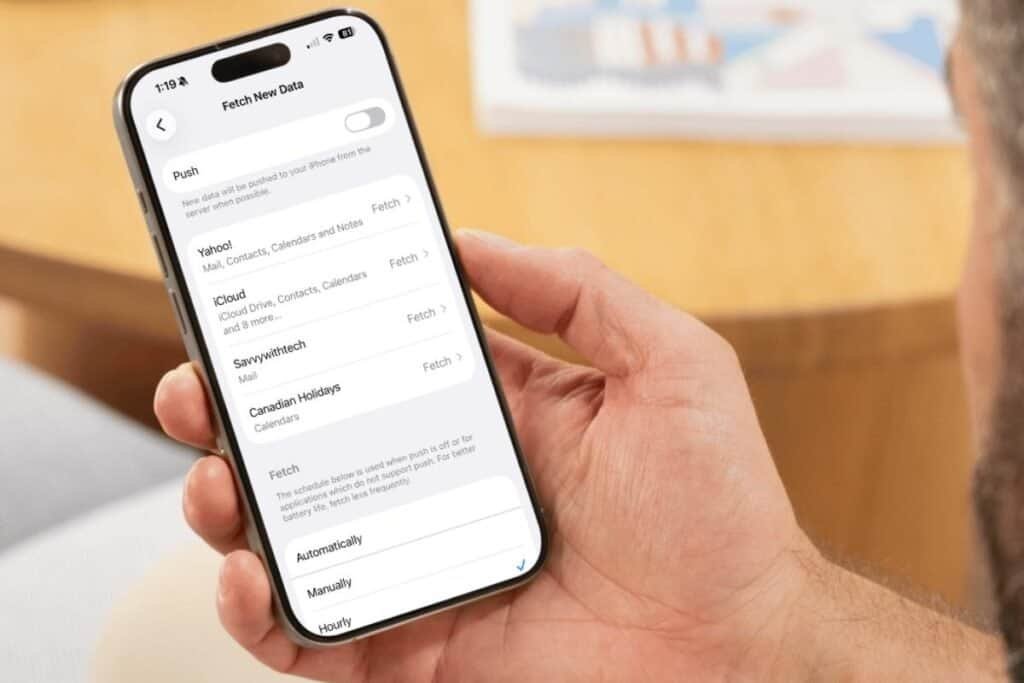
What You Can Do
Switching to Fetch can help save battery, and you won’t miss anything—your email will update as soon as you open the Mail app.
How to check your Mail settings:
- Open Settings
- Scroll down to Apps
- Select Mail
- Tap Mail Accounts
- At the bottom, Tap Fetch New Data
- If Push is on, Toggle off
- Scroll to the bottom and choose a Fetch Schedule.
The longer you make the Fetch Schedule the more battery you will save.
If you’re not waiting on urgent emails, you likely won’t notice a difference using Fetch—but your battery might.
A Few Small Changes Can Make a Big Difference
If your iPhone battery has been draining faster than usual, it’s easy to assume something is wrong. But as you’ve seen, it’s often just a few everyday settings and habits quietly using power in the background. I made a few of these changes myself, and I noticed my battery lasted longer the very next day.
Even adjusting one or two things—like how you stream, how often your screen turns on, or what apps are doing behind the scenes—can help your battery last longer throughout the day. Start with the ones that make the most sense for how you use your phone. Small changes really can add up.
If you’ve enjoyed this post, stick around! I share new iPhone guides, tricks, and step-by-step tips every week. Subscribe below and follow me on Facebook and Instagram so you never miss out.

Gail Kerr
IT Professional and Technical WriterTechnology has been a part of my life for as long as I can remember. I have over 28 years of experience providing computer support in large corporations and small businesses. I went back to school in 2009 to get an Associate Certificate in Technical Writing so I could take my love of tech and become proficient at writing clear and easy to understand documents for people of all levels. I’ve become the go to person for family and friends whenever they have tech questions or challenges.