

If you’ve ever found yourself squinting at your iPhone, adjusting the brightness over and over, or getting distracted by cluttered web pages, you’re not alone. Reading on a phone isn’t always as easy, or as comfortable as it should be.
What most people don’t realize is that some of the best tools to fix this are already built into your iPhone. Many of them come from Apple’s accessibility features. They are designed to make the iPhone easier to use. They also happen to make it much easier to read text, reduce eye strain, and even use features like Reader Mode or have your iPhone read text aloud.
Whether your eyes feel tired, you’re reading at night, trying to focus on an article without distractions, or just don’t feel like reading at all, there’s a better way to do it.
In this post, I’ll show you simple settings that can help you increase text size, make your iPhone easier to read, reduce strain on your eyes, clean up what’s on your screen—and even let your iPhone read things out loud for you.
Make Text Easier to Read on Your iPhone
If text on your iPhone ever feels too small or hard to read, you’re not imagining it. The default settings don’t work for everyone—but the good news is, they’re easy to change.
This is one of the quickest ways to make your iPhone easier to read, and it only takes a minute to adjust.
Increase Text Size
This is the first setting most people should try—and for many, it’s all you need. You’ll see a preview as you move the slider, so you can choose what feels most comfortable.
If you find the largest size still isn’t quite enough, your iPhone may give you the option to increase it further under Accessibility settings—but for most people, the main slider does the job.
Make Text Stand Out with Bold Text
Sometimes it’s not just the size—it’s how clear the text looks.
Turning on Bold Text can make everything easier to read by making letters thicker and more defined.
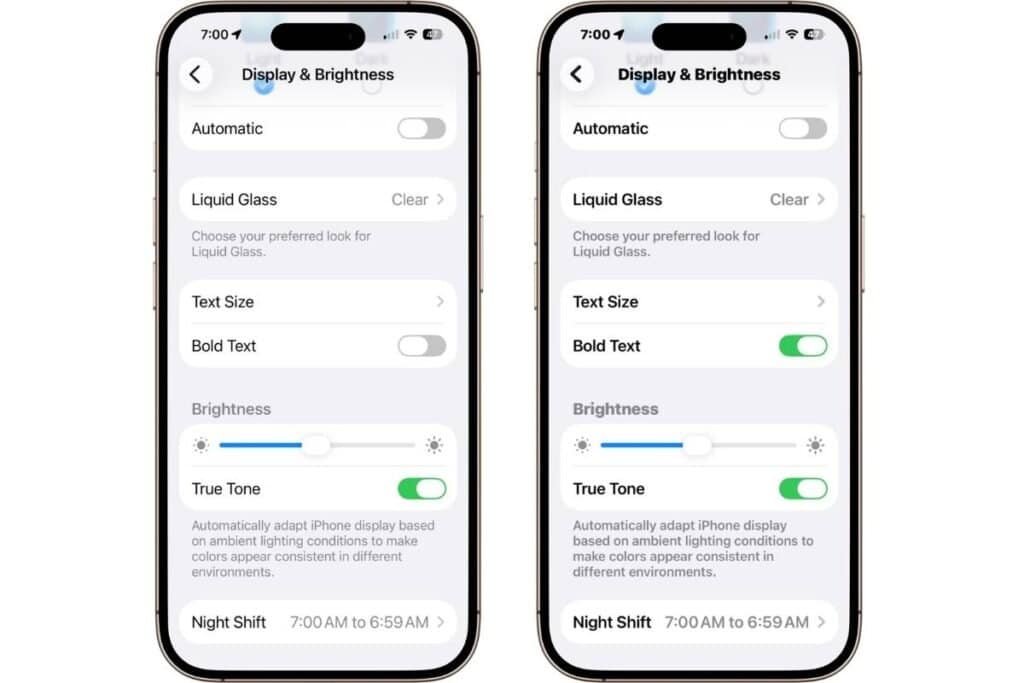
Where to find these settings:
Settings → Display & Brightness
These small changes can make a big difference—especially if you find yourself squinting or adjusting your screen throughout the day. It’s one of the easiest ways to reduce eye strain and make reading on your iPhone feel more comfortable right away.
💡 Bonus tip: If you adjust text size often, you can also add a Text Size control to Control Center for quicker access. I show you how to set that up in my post, iPhone Control Center: Make the Most of it Quickly
But what if the text still doesn’t feel quite right?
In the next section, we’ll look at a few simple settings that don’t change the size—but make text clearer and easier to see on your screen.
Make Text Clearer and Easier to See
If you’ve already increased the text size but things still don’t feel quite right, the issue may not be size—it may be clarity. Some of the best improvements come from settings that reduce visual noise and make text stand out more clearly on your screen.
Increase Contrast
Increase Contrast helps text stand out more clearly from the background, making everything easier to read at a glance. This is especially helpful when reading apps or websites where text blends into the background or feels faint against lighter design elements.
Reduce Transparency
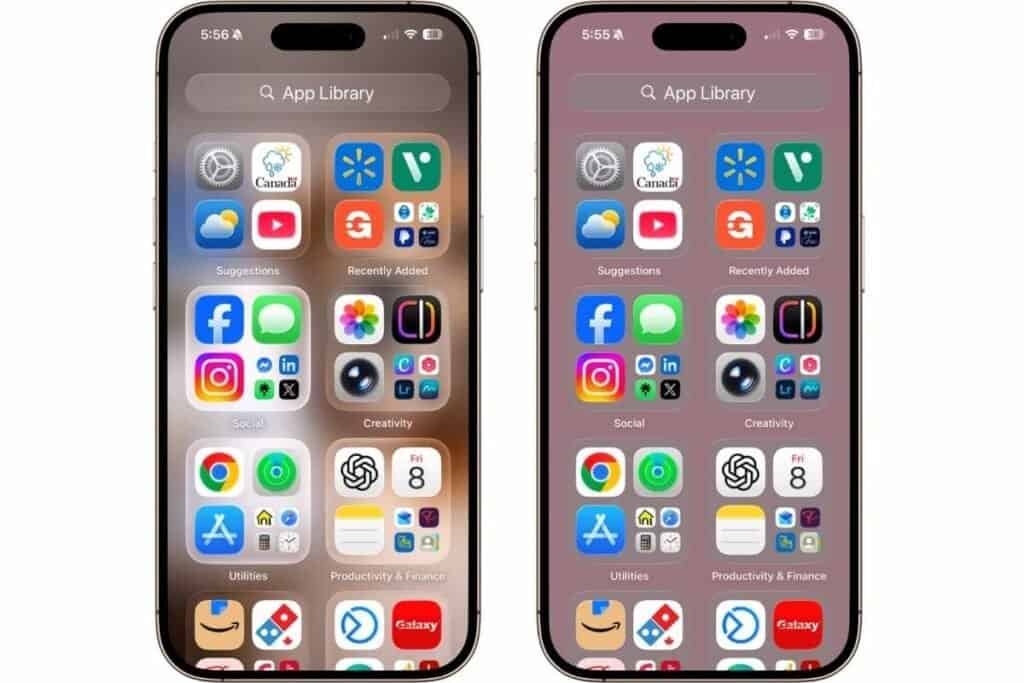
Reduce Transparency removes the blurred, see-through effects used in menus and system screens.
While these effects look modern, they can make text feel less solid and harder to focus on. Turning this on creates a more stable and easier-to-follow screen.
Show Borders
Show Borders adds clearer outlines to buttons and interactive elements so they’re easier to recognize.
Instead of relying on subtle design cues or color alone, buttons become more defined, which helps reduce confusion when navigating apps or settings.
Reduce Bright Effects
Reduce Bright Effects tones down overly bright or glowing interface elements that can sometimes draw too much attention away from the text itself.
Where to find these settings:
Settings → Accessibility → Display & Text Size
This creates a calmer visual experience and can make reading feel less harsh—especially in apps with strong highlights or bright UI elements.
These settings don’t change the size of your text—but they can make your iPhone feel noticeably clearer, calmer, and easier to read.
If reading still feels tiring after adjusting both size and clarity, the next step is to look at how your screen behaves in different lighting conditions.
Reduce Eye Strain When Reading on Your iPhone
Even when text is easy to read and the screen feels clear, your eyes can still get tired—especially if you’re reading for long periods, at night, or in bright environments.
This is where your iPhone has a few built-in settings that focus less on text and more on how your screen feels over time. Together, they can make reading much more comfortable throughout the day.
Night Shift
Night Shift changes your screen to warmer tones in the evening, reducing the harsh blue light that can make your eyes feel more strained at night. You can set the time for it to turn on or have it turn on at sunset and turn back off at sunrise. I actually keep it on all the time. The warmer color is more comfortable for my eyes.
It doesn’t change how your text looks—it changes how the screen feels, especially when you’re reading before bed or in low light.
Dark Mode
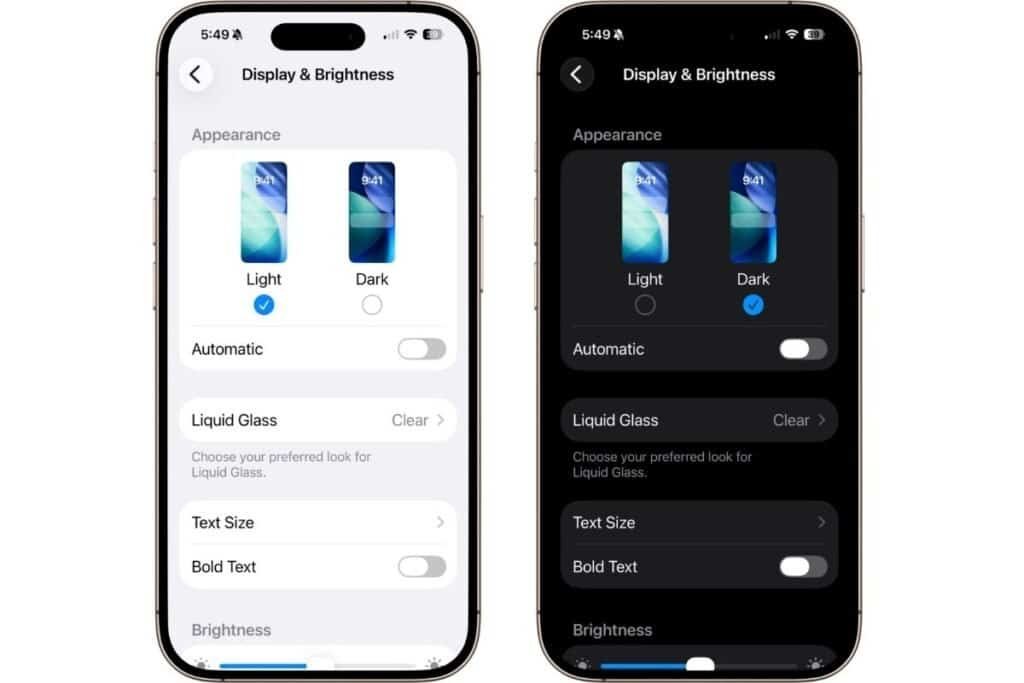
Dark Mode switches your iPhone interface to a darker background with lighter text, which can feel easier on the eyes in dim environments.
Many people find it especially helpful when reading at night or when they don’t want a bright screen pulling their attention.
Brightness and Auto-Brightness
Sometimes eye strain comes down to something simple—your screen is just too bright or too dim for your surroundings.
Adjusting brightness manually, or turning on Auto-Brightness, helps your iPhone adapt more naturally to the light around you, making reading feel less harsh.
True Tone
True Tone adjusts the color of your screen based on the lighting in your environment, so whites look more natural instead of overly bright or blue.
It’s a subtle change, but it can make reading feel more comfortable without you having to think about it.
Where to find these settings:
Settings → Display & Brightness
Taken together, these settings help reduce eye strain by making your screen feel more balanced and less intense—especially during longer reading sessions or at night.
If reading still doesn’t feel quite right, the next step is to remove distractions entirely and simplify what’s on your screen.
Use Reader Mode for a Cleaner Reading Experience
Even with better text size, clearer contrast, and reduced eye strain, some pages on your iPhone can still feel overwhelming. Ads, pop-ups, and cluttered layouts can make it harder to focus on what you actually want to read.
That’s where Reader Mode comes in. Reader Mode is available in both Safari and Chrome. It takes a webpage and strips away everything except the text and essential images, giving you a much cleaner, distraction-free reading experience.
Customize How It Looks
Reader Mode also lets you adjust how the text appears, so you can make it even more comfortable to read.
You can:
- Increase or decrease text size
- Change the background color
- Adjust the font style
This gives you more control over your reading experience, especially if you prefer a softer background or larger text.
A Better Way to Stay Focused
One of the biggest benefits of Reader Mode is focus. When everything else disappears, it’s easier to stay with what you’re reading instead of jumping between ads, links, or pop-ups. It turns a normal webpage into something that feels closer to a dedicated reading app.
Reader Mode is one of the simplest ways to instantly improve how reading feels on your iPhone—especially if you spend a lot of time reading articles or news online.
Where to find this feature:
Safari
- Open a webpage.
- In the address bar, tap the screen icon (screen with two lines below).
- Tap Show Reader.
Chrome
- Open a webpage.
- In the address bar, tap Reader icon in the top-right corner.
What would you say it I told you there is a point where reading doesn’t just get easier… it becomes optional.
Next, we’ll look at how your iPhone can actually read things out loud to you when you don’t feel like reading at all.
Let Your iPhone Read Text Out Loud
Even with all these improvements, sometimes you just don’t feel like reading—and that’s okay.
Your iPhone has a built-in feature that can read text out loud to you, turning articles, emails, or notes into something you can listen to instead. It’s one of the most underrated tools on the iPhone, and once you start using it, it can completely change how you consume content.
Speak Screen
Speak Screen lets your iPhone read everything currently on your screen using a simple controller. It works with webpages, emails, notes, and more—making it easy to listen instead of read.
This is especially useful when:
- Your eyes feel tired
- You’re multitasking (walking, cooking, etc.)
- You just want a break from looking at your screen
Once enabled, a small control panel will appear on your screen when Speak Screen is active, giving you access to playback and speed controls.
Speak Selection
If you don’t want everything read out loud, Speak Selection gives you more control.
You can highlight a specific section of text and have only that part read to you—perfect for longer articles or when you just need to focus on one section.
💡 A quick tip: I noticed this while testing— make sure you select the text first, then tap Speak. If you want to pause, tap the text again and pause with show as an option.
A More Flexible Way to Read
What makes this feature so powerful is the flexibility. You can switch between reading and listening depending on what feels easiest in the moment. Having both options gives you a much more comfortable and flexible way to use your iPhone.
Where to find these settings:
Go to Settings → Accessibility, then look for:
- Spoken Content (iOS 18), or
- Read & Speak (iOS 26)
From there, you can toggle on:
Speak Screen– you’ll also want to toggle on “Show Controller“
Speak Selection
At this point, reading on your iPhone isn’t just easier—it’s something you can adapt to how you feel, where you are, and what you need in the moment.
Bringing It All Together
Reading on your iPhone doesn’t have to feel frustrating or tiring.
Sometimes it’s just a matter of making a few small adjustments—like increasing text size or reducing screen brightness. Other times, it’s about changing how you read altogether, whether that’s using Reader Mode to remove distractions or letting your iPhone read things out loud for you.
The best part is, you don’t have to use all of these. Even trying one or two can make a noticeable difference. And once you find what works for you, reading on your iPhone starts to feel a lot easier—and a lot more enjoyable.
If you’ve enjoyed this post, stick around! I share new iPhone guides, tricks, and step-by-step tips every week. Subscribe below and follow me on Facebook and Instagram so you never miss out.

Gail Kerr
IT Professional and Technical WriterTechnology has been a part of my life for as long as I can remember. I have over 28 years of experience providing computer support in large corporations and small businesses. I went back to school in 2009 to get an Associate Certificate in Technical Writing so I could take my love of tech and become proficient at writing clear and easy to understand documents for people of all levels. I’ve become the go to person for family and friends whenever they have tech questions or challenges.


This is a critical tip for the baby boomers