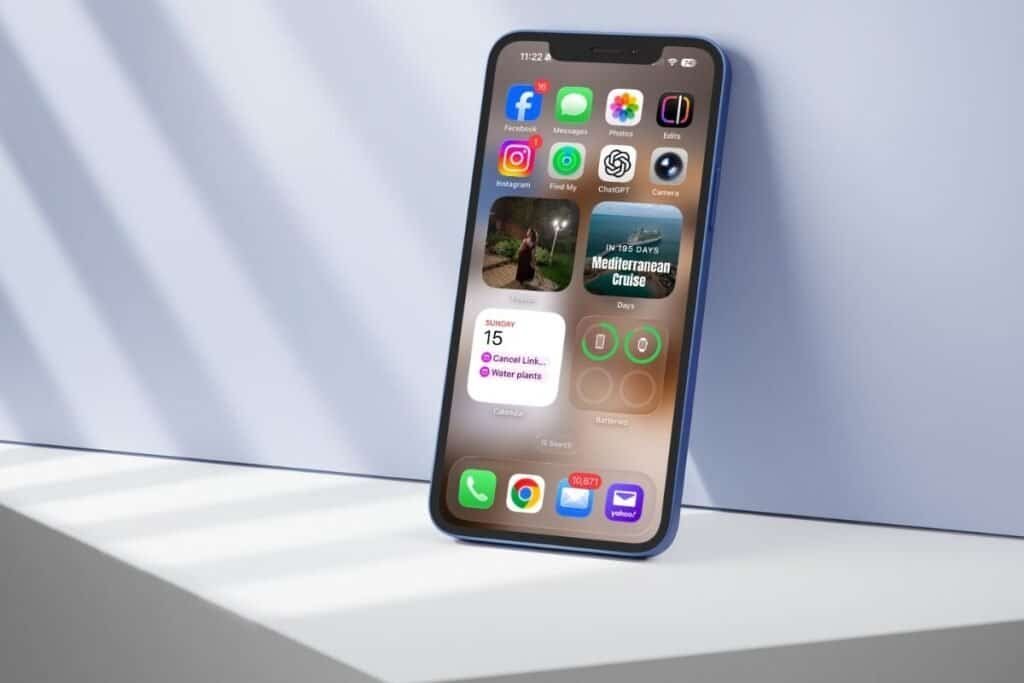
If you recently updated to iOS 26, you may have noticed the new Preview app on your iPhone. It’s a small addition, but it fits into a bigger shift Apple is making with iOS 26 — reorganizing everyday tools so they’re easier to find and use.
The Preview app brings together simple tasks like viewing PDFs, signing documents, and marking up images that were previously spread across different apps.
If you’ve noticed Preview on your iPhone and weren’t quite sure what it’s for, here’s what you need to know and how it fits into iOS 26.
What Exactly Is the Preview App on iOS 26?
The Preview app on iOS 26 is a built-in tool for working with PDFs and images on your iPhone. It gives you a single place to open documents, make quick edits, and handle simple tasks without needing a separate app.
Preview isn’t meant to replace Photos, Files, or professional editing apps. Instead, it focuses on everyday document tasks that many people already do on their iPhone, just now in a more organized way.
Before iOS 26, these tools existed, but they were spread across apps like Files, Notes, and Mail. Preview brings them together in one place, so you don’t have to remember where a specific tool lives. Once you know what Preview is meant for, it’s easier to see how it can be useful in everyday situations.
What You Can Do With the Preview App
With Preview, you can handle common document tasks on your iPhone without jumping between multiple apps.
With Preview, you can:
- Open and read PDFs
View documents clearly, zoom in, and scroll without switching apps. Before iOS 26, you might have opened PDFs in Files or Mail depending on where they came from. Preview keeps the tools consistent. - Fill in and sign forms
When a form arrives by email, you can use Preview to add your signature or fill in fields without bouncing between apps. - Scan paper documents
Preview lets you scan paperwork using your iPhone’s camera and save it as a PDF, instead of opening Notes just to scan. - Mark up documents or images
Highlight text, draw attention to a section, or add quick notes using built-in markup tools that were previously scattered across different apps. - Make quick image changes
Crop or rotate images when you don’t need full photo editing features.
Preview doesn’t introduce brand-new tools — it brings familiar ones together, making them easier to find when you need to do something with a document.
How to Use the Preview App
You usually won’t open the Preview app on its own. Instead, you’ll use it when you’re already working with a document or image and need a few extra tools.
Here’s how Preview typically fits into what you’re doing on your iPhone:
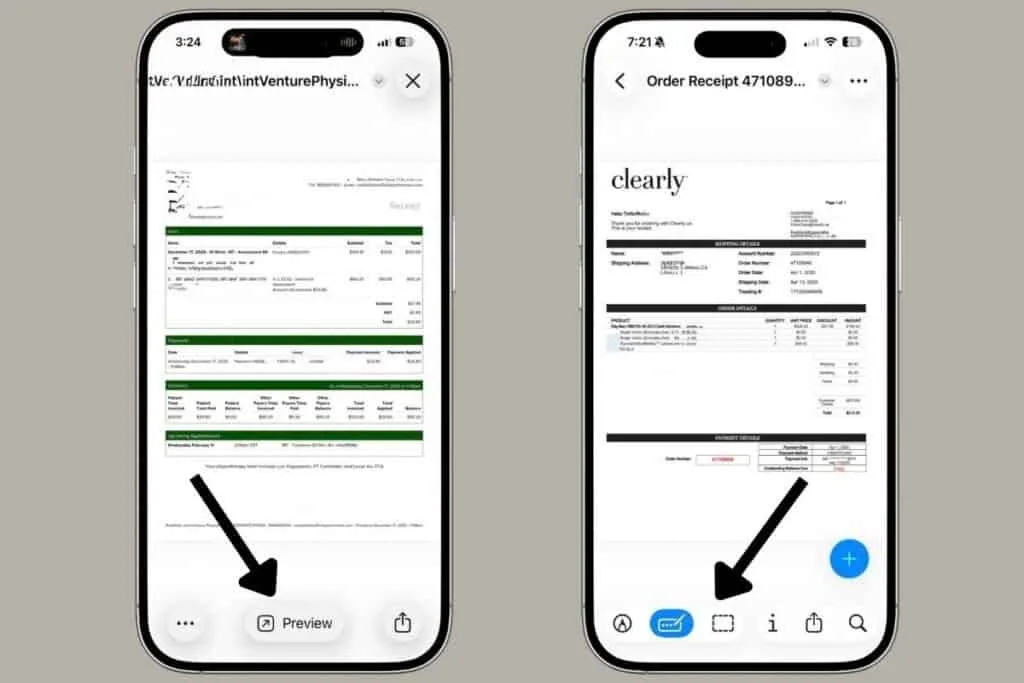
- Open a PDF in Preview from Mail
When you tap a PDF in Mail, it opens inside the email. If you need to sign, mark up, or edit the document, tap ↗︎ Preview at the bottom of the screen to access those tools. - Sign a document
Open the PDF in Preview, tap the markup tools, and add your signature or fill in form fields directly on the document. - Scan a paper document
Open Preview and choose the scan option to use your iPhone’s camera. Preview captures the document and saves it as a PDF, ready to share or store. - Mark up a document or image
In Preview, use the markup tools to highlight text, draw attention to a section, or add notes when reviewing a document or image. - Make quick image edits
Use Preview to rotate or crop an image when you don’t need full photo-editing features.
Preview is designed for quick tasks. It gives you just enough tools to get something done without switching between multiple apps or downloading anything extra.
How Preview Fits Into the Bigger iOS 26 Picture
The Preview app is a good example of how iOS 26 works overall. Apple didn’t remove tools — it reorganized them. Preview simply brings together document tasks that were already on your iPhone and makes them easier to access when you need them.
Related iOS 26 Posts
If you’re still getting used to iOS 26, these related posts may be helpful next:
- iOS 26: What Changed and Why It Feels So Different
- iOS 26 Moved the Search Bar — and It Actually Makes Sense
- Common iOS 26 Problems and What Actually Fixes Them
If you’ve enjoyed this post, stick around! I share new iPhone guides, tricks, and step-by-step tips every week. Subscribe and follow me on Facebook and Instagram so you never miss out.

Gail Kerr
IT Professional and Technical WriterTechnology has been a part of my life for as long as I can remember. I have over 28 years of experience providing computer support in large corporations and small businesses. I went back to school in 2009 to get an Associate Certificate in Technical Writing so I could take my love of tech and become proficient at writing clear and easy to understand documents for people of all levels. I’ve become the go to person for family and friends whenever they have tech questions or challenges.