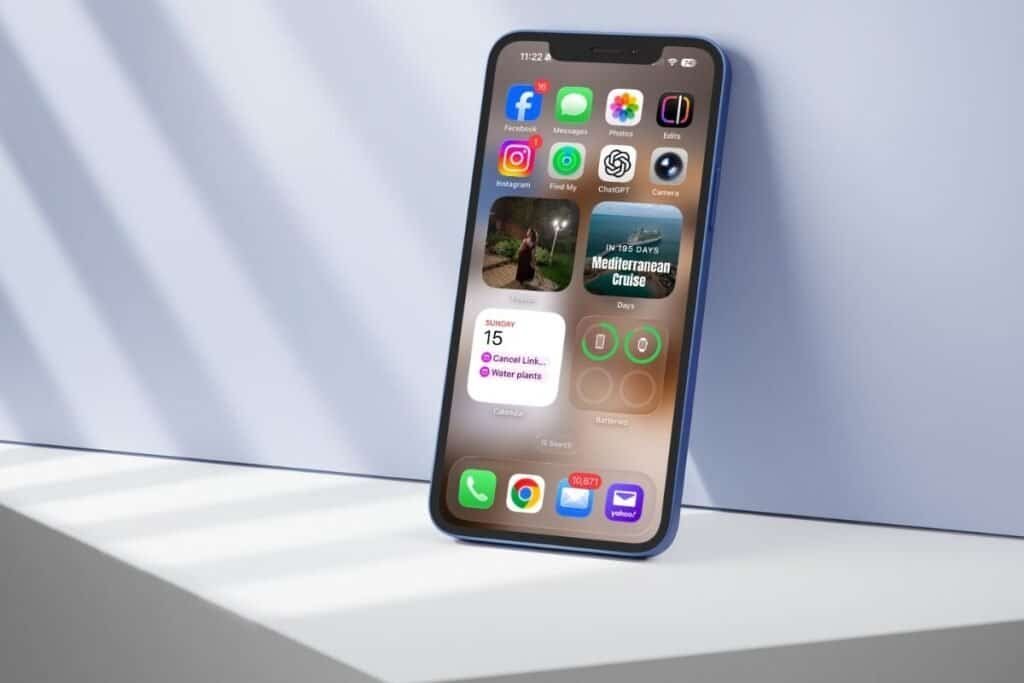
If you’ve updated to iOS 26 and noticed the search bar at the bottom of apps like Mail, Notes, or Settings, you might have paused for a moment and thought, Why did Apple move that? Or maybe you instinctively scrolled to the top, assuming it should still be there.
That was my muscle memory too.
Nothing is broken, and nothing disappeared. In iOS 26, Apple moved the in-app search bar to the bottom of the screen — and while it feels strange at first, there’s a practical reason behind it.
This is just one of several subtle design changes in iOS 26 — I covered the bigger picture in my post iOS 26: What Changed and Why It Feels So Different, if you want a broader overview of what’s new.
Why the Search Bar Moved to the Bottom in iOS 26
This change isn’t about Spotlight or swiping down on the Home Screen — that works the same way it always has.
What changed in iOS 26 is in-app search. In many of Apple’s built-in apps, the search bar is no longer tucked away at the top of the screen. Instead, it now sits at the bottom, where your thumb naturally rests.
You’ll notice this most clearly in apps like:
- Notes
- Settings
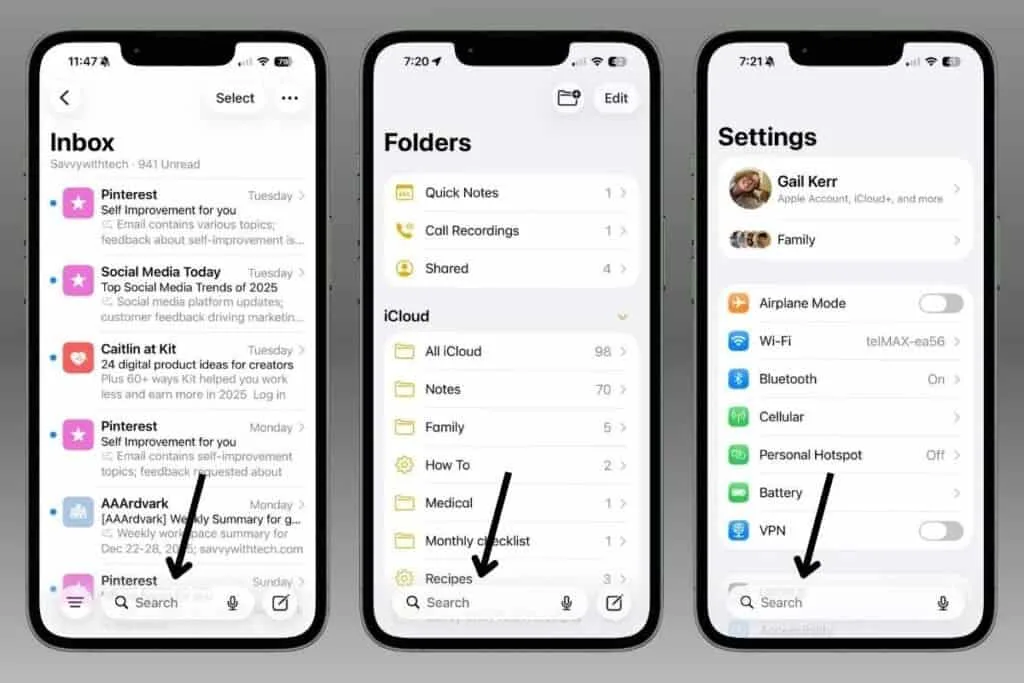
The functionality is exactly the same — only the placement changed.
Why the iOS 26 Search Bar at the Bottom Feels Easier to Use
At first, I didn’t like the change. Like most people, I automatically went looking for the search bar at the top of the screen.
But then I tried a quick test.
Instead of reaching up, I reached for the bottom of the screen — and almost immediately, it felt more natural.
That surprised me.
Phones are bigger than they used to be, and many of us use our iPhones one-handed. Reaching the top of the screen often means shifting your grip or stretching your thumb. The bottom of the screen, on the other hand, is easier to reach and more comfortable.
Once you notice it, the design choice makes a lot of sense.
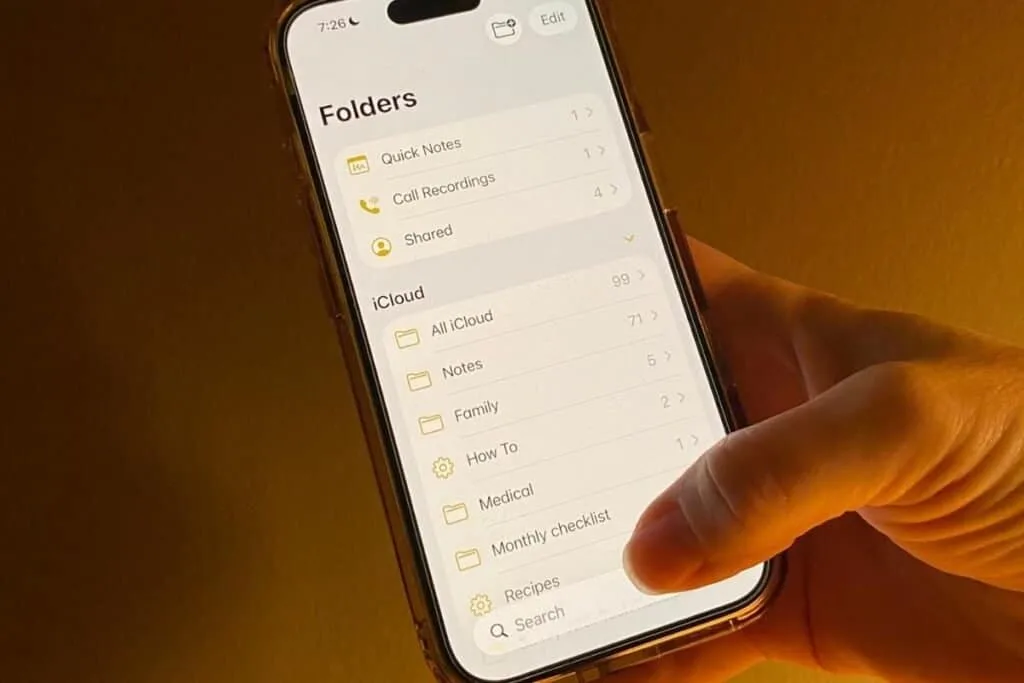
Getting Used to the New Search Bar Location in iOS 26
If the search bar at the bottom feels awkward or unnecessary, that doesn’t mean it’s a bad change.
It just means your muscle memory hasn’t caught up yet.
For years, we’ve been trained to reach up to find search. That habit is hard to break — but it doesn’t take long. After a few uses, my thumb started going to the bottom automatically.
There’s nothing you need to turn on or adjust. Apple didn’t add a setting to move it back, and that’s intentional. This is one of those changes that feels unfamiliar at first, but smoother once your brain adapts.
How to Use the Bottom Search Bar in iOS 26 Apps
Using the search bar works the same way it always has — it’s just easier to reach now.
The next time you open Mail, Notes, or Settings:
- Don’t scroll
- Look at the bottom of the screen
- Tap Search and start typing
In Settings especially, using search instead of scrolling can save a surprising amount of time.
Final Thought
When I first noticed the search bar at the bottom in iOS 26, it felt unnecessary. But after actually trying it, I understood why Apple made the change.
It’s not about changing things just to change them.
It’s about making everyday actions feel a little more natural — even if it takes a short adjustment period.
If something in iOS 26 feels “off” at first, it’s worth giving it a moment. Sometimes the improvement isn’t obvious until you feel it for yourself.
Related reading
If you enjoy discovering small iPhone changes that are easy to miss, you might also like More iPhone Hidden Features You May Not Know.
If you’ve enjoyed this post, stick around! I share new iPhone guides, tricks, and step-by-step tips every week. Subscribe below and follow me on Facebook and Instagram so you never miss out.

Gail Kerr
IT Professional and Technical WriterTechnology has been a part of my life for as long as I can remember. I have over 27 years of experience providing computer support in large corporations and small businesses. I went back to school in 2009 to get an Associate Certificate in Technical Writing so I could take my love of tech and become proficient at writing clear and easy to understand documents for people of all levels. I’ve become the go to person for family and friends whenever they have tech questions or challenges.